WePartner AP user guideWePartner AP 用户指南
Follow these step-by-step instructions to manage agreements, budgets, care plans, expenses, participant statements and care notes. Choose a topic from the navigation to get started.按照本指南的步骤管理协议、预算、护理计划、费用、参与者对账单和护理记录。请从导航中选择主题开始。
01Amending an agreement修改协议
1To update an existing agreement, select Agreements in the left sidebar, then select Agreement List.如需更新现有协议,请在左侧菜单中选择 Agreements(协议),然后选择 Agreement List(协议列表)。
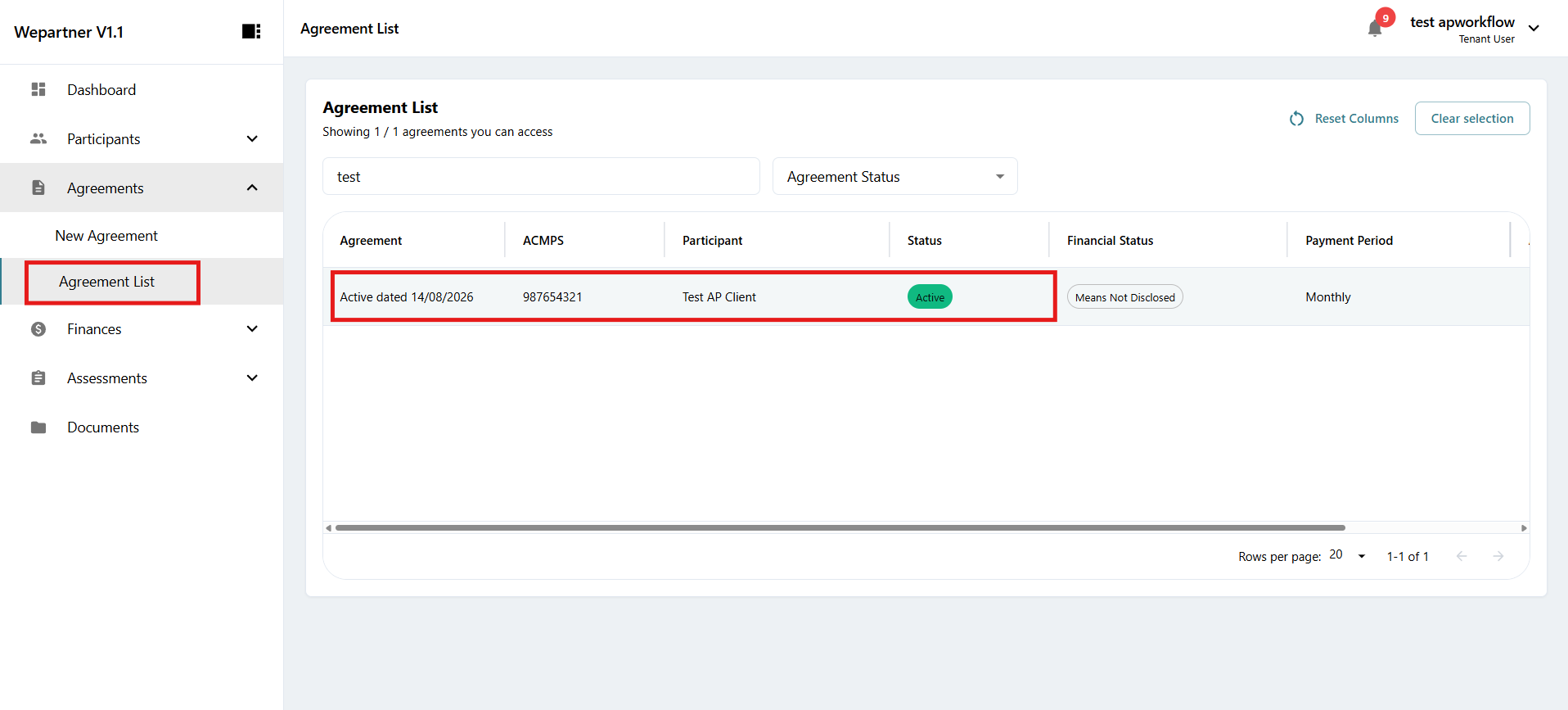
2Choose the agreement you wish to amend and click the entry to open it.选择需要修改的协议,然后点击该条目打开协议。
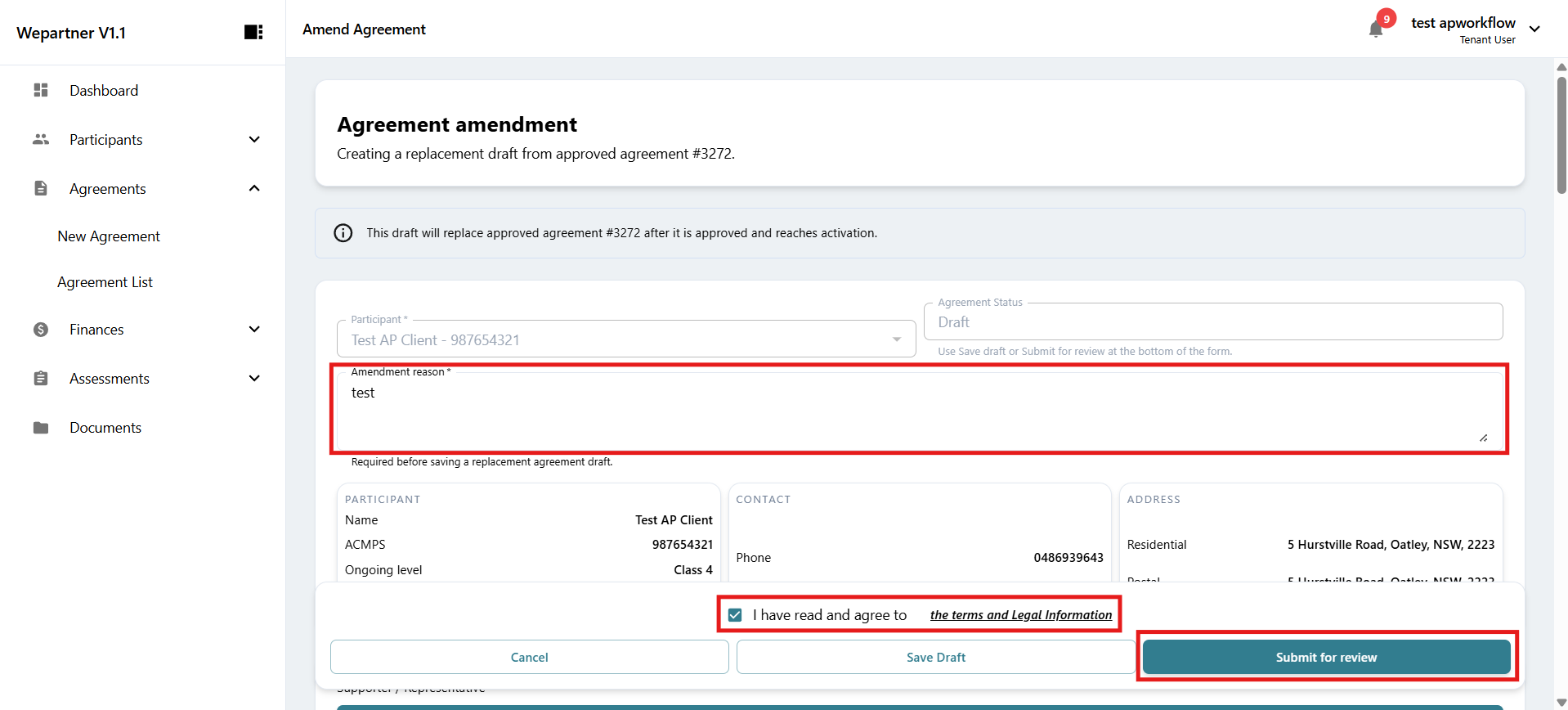
3Select Start Amendment, then edit the agreement details.选择 Start Amendment(开始修改),然后编辑协议详情。
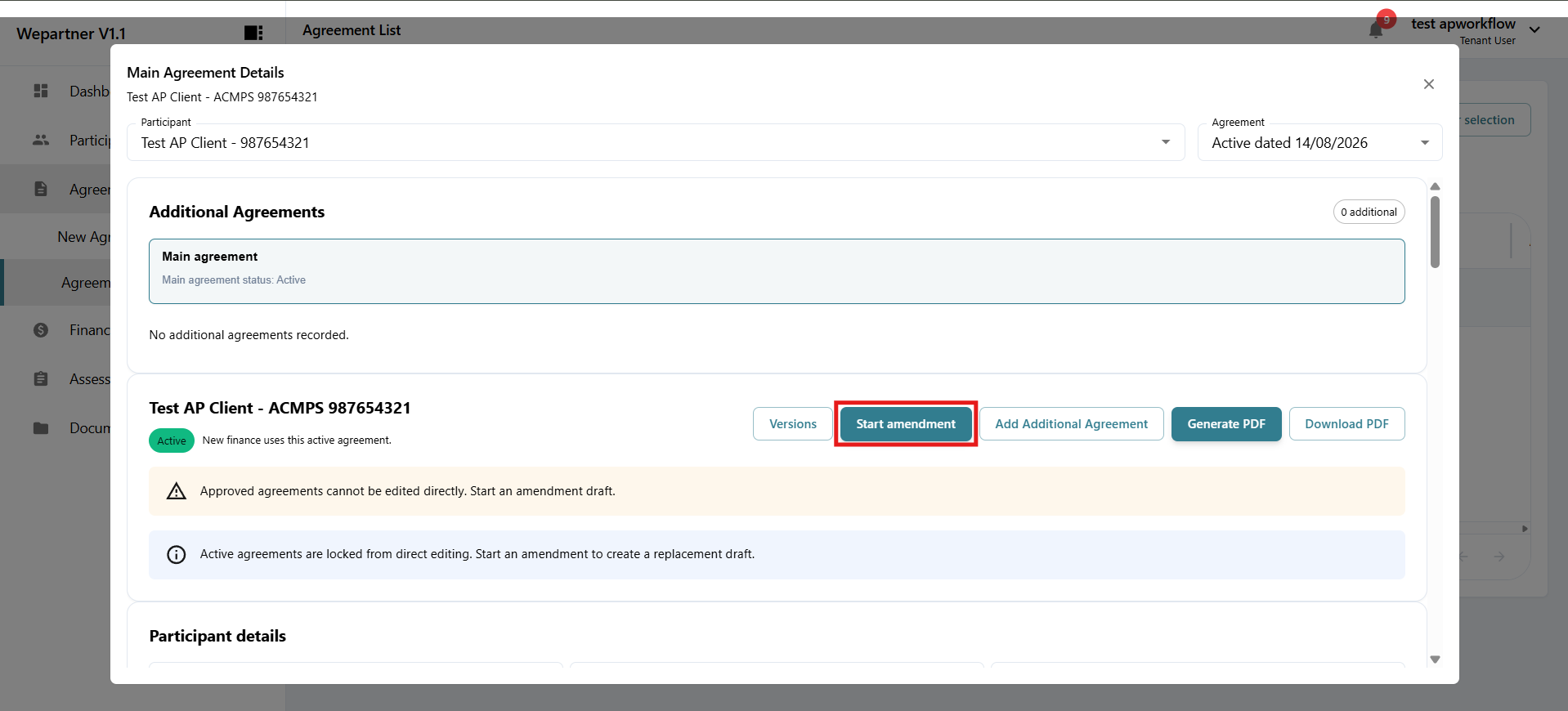
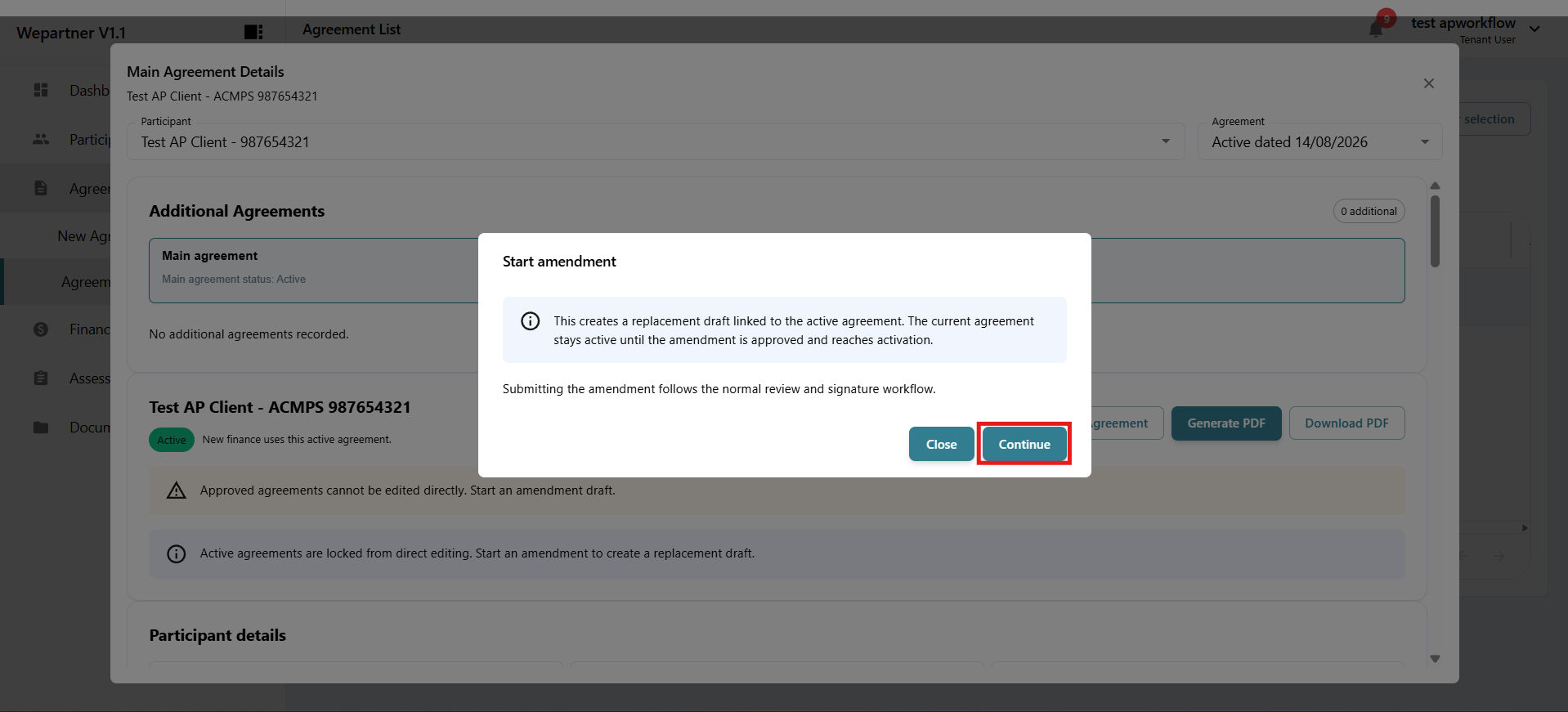
This will create a new draft agreement based on the current agreement you are editing and replace the current agreement once the amendment is approved. The current agreement remains active until the new agreement is approved.系统将根据正在编辑的现有协议创建一份新草稿。修改获得批准后,新协议将取代现有协议;在此之前,现有协议继续有效。
4Click Save draft to save your current progress and return to it later.点击 Save draft(保存草稿)以保存当前进度,之后可继续编辑。
5Click Submit for review to submit the draft agreement for review. Once it has passed review, the amended agreement will replace the current agreement.点击 Submit for review(提交审核)以提交协议草稿。审核通过后,修改后的协议将取代现有协议。
02Budget and care plan预算与护理计划
Creating a budget创建预算
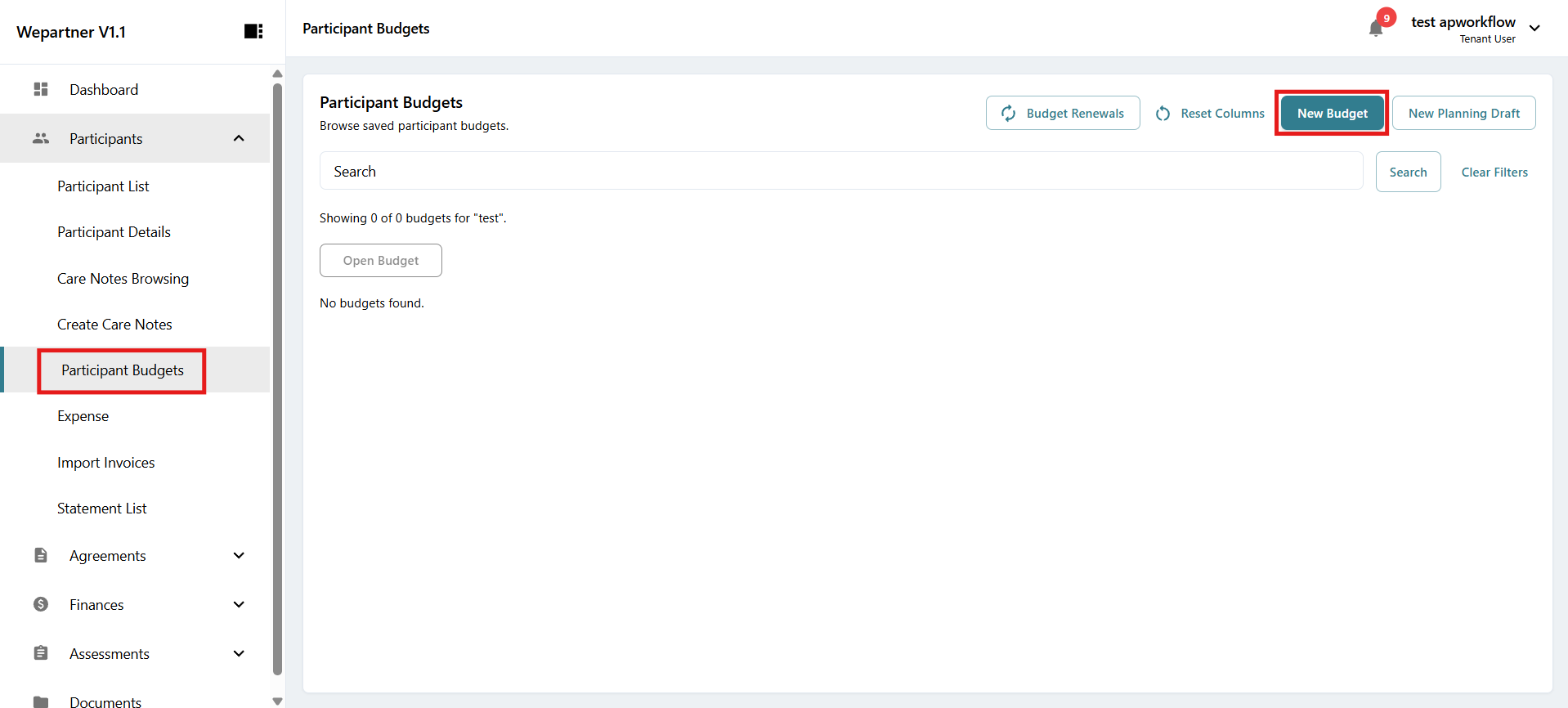
1To create a new budget for a participant, select Participants in the left sidebar, then select Participant Budgets.要为参与者创建新预算,请在左侧菜单中选择 Participants(参与者),然后选择 Participant Budgets(参与者预算)。
2Select New Budget to open a new budget.选择 New Budget(新建预算)以打开新预算。
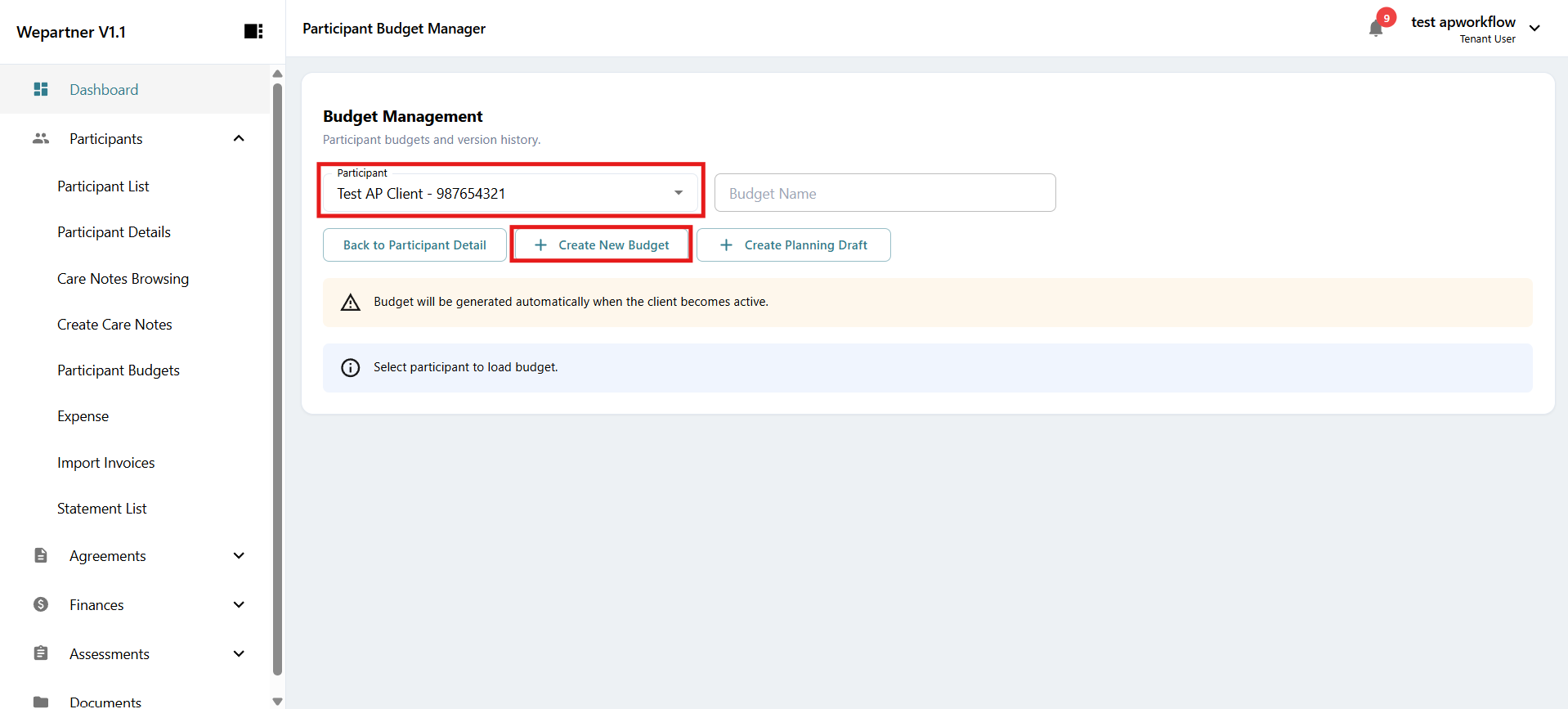
3From the dropdown menu, select the participant for whom you want to create a budget.从下拉菜单中选择需要创建预算的参与者。
4Select Create New Budget. Optionally, give the budget a name to make it easier to identify if the participant has, or will have, multiple budgets.选择 Create New Budget(创建新预算)。如果参与者有多个预算,或将来可能有多个预算,可以为预算命名以便识别。
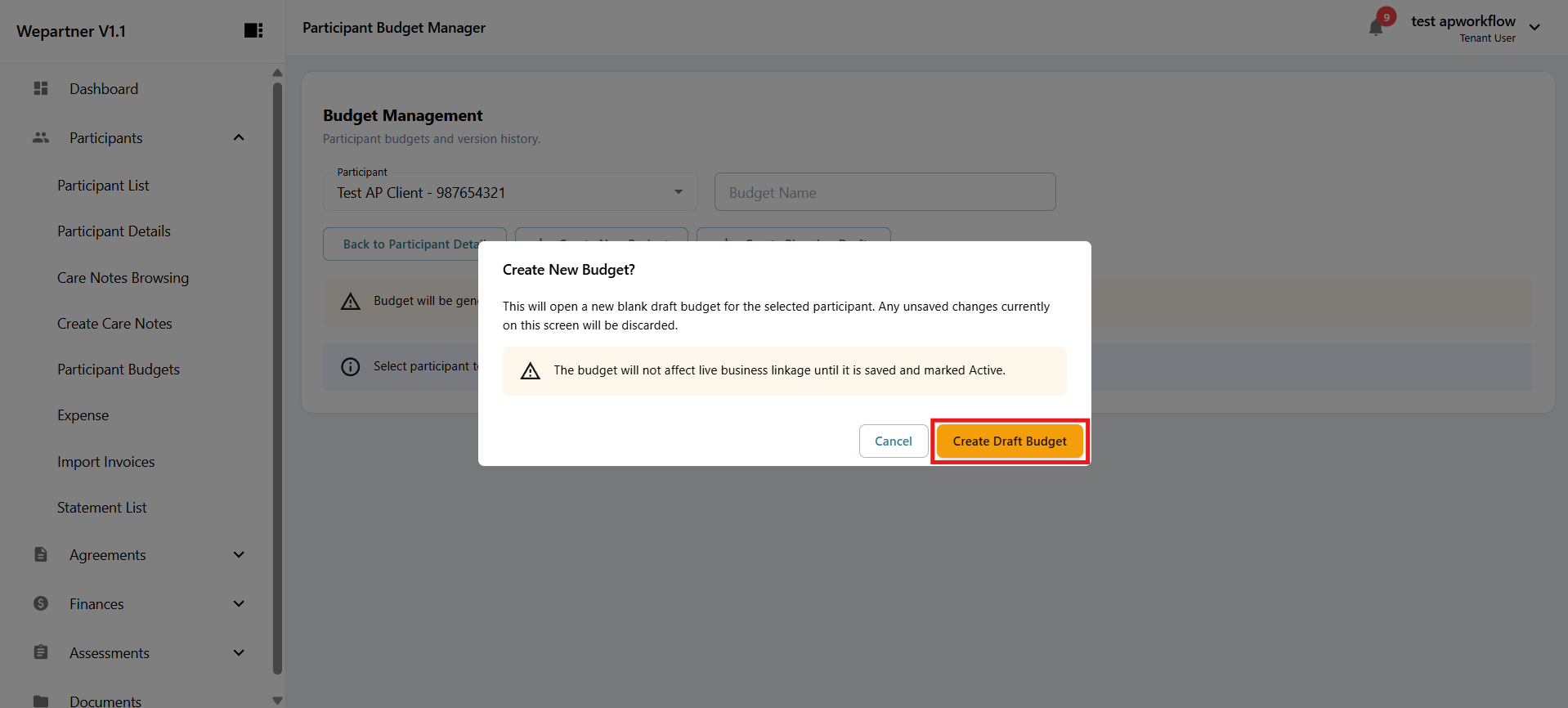
5Click Create Draft Budget in the pop-up window.在弹出窗口中点击 Create Draft Budget(创建预算草稿)。
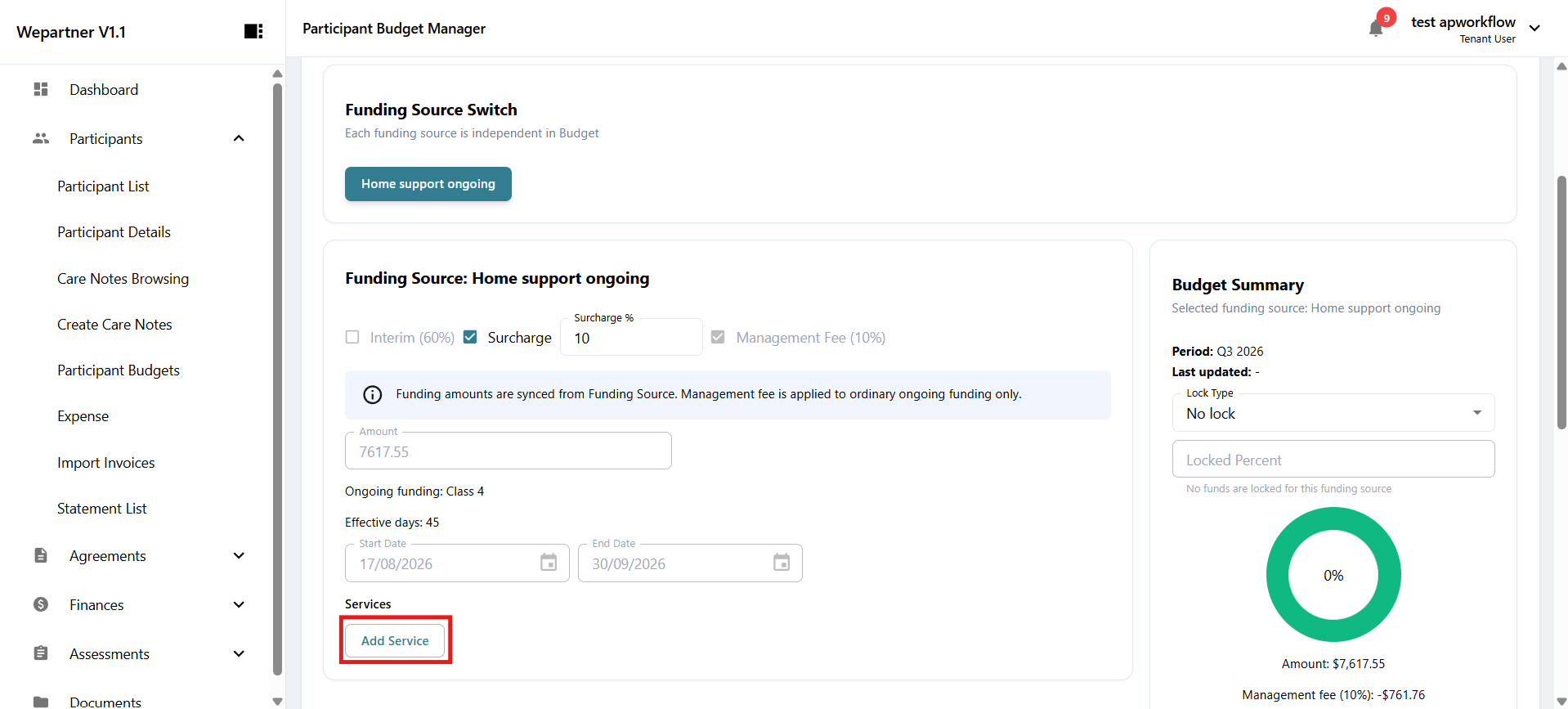
A draft budget template will be created based on the signed agreement.系统将根据已签署的协议创建预算草稿模板。
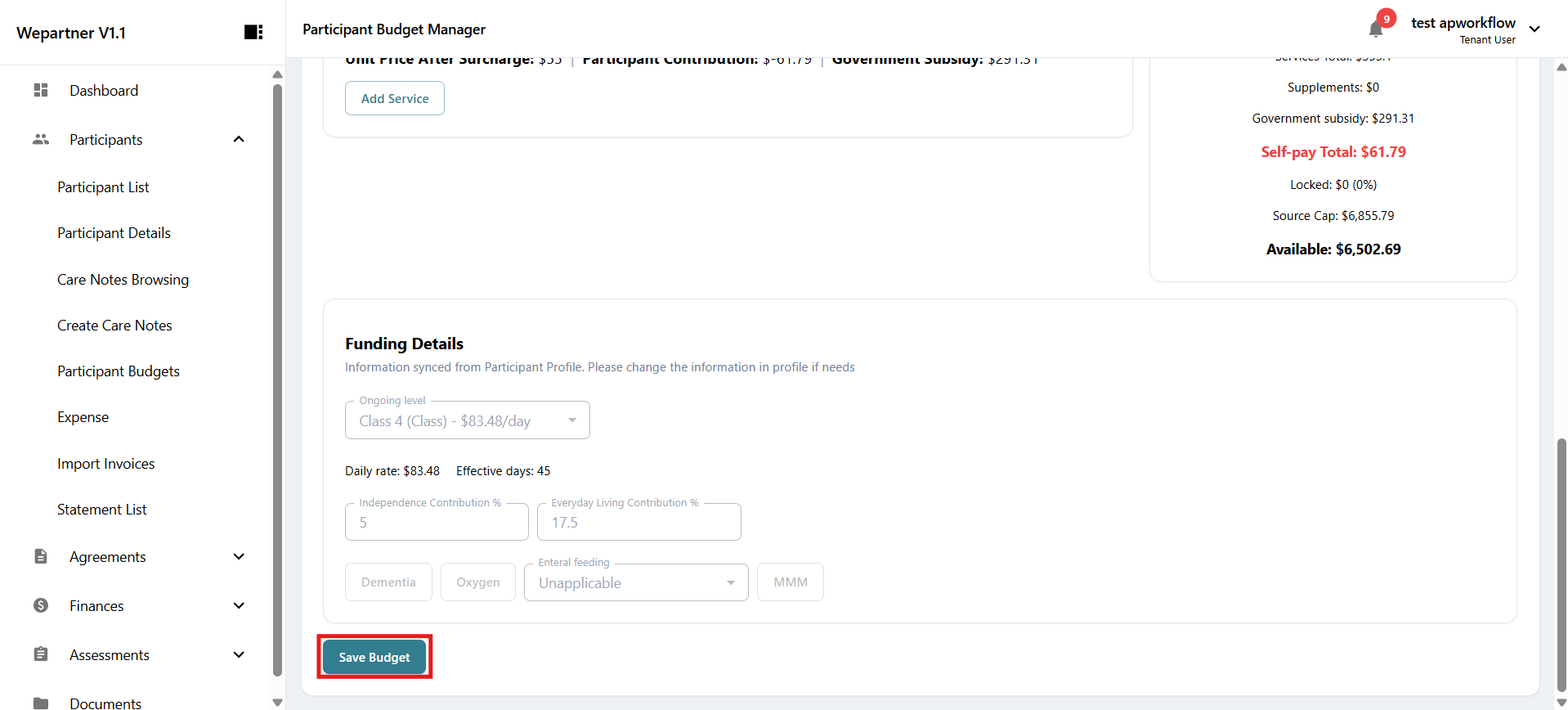
6Click Add Service to add a service, its price and frequency. The budget ring on the right will automatically update to give a visual representation of the budget spent as you add, remove or modify the services.点击 Add Service(添加服务),添加服务及其价格和频率。添加、删除或修改服务时,右侧预算环会自动更新,直观显示预算使用情况。
7Click Save Budget to save the draft budget. The budget will become active for the participant once it has been approved by the government.点击 Save Budget(保存预算)以保存预算草稿。政府批准后,该预算将对参与者生效。
Creating a care plan创建护理计划
An active budget is required before creating a care plan. The types of care plans are Support at Home, clinical, RCP and EOL.创建护理计划前,必须有一个生效的预算。护理计划类型包括 Support at Home(居家支持)、clinical(临床)、RCP 和 EOL。
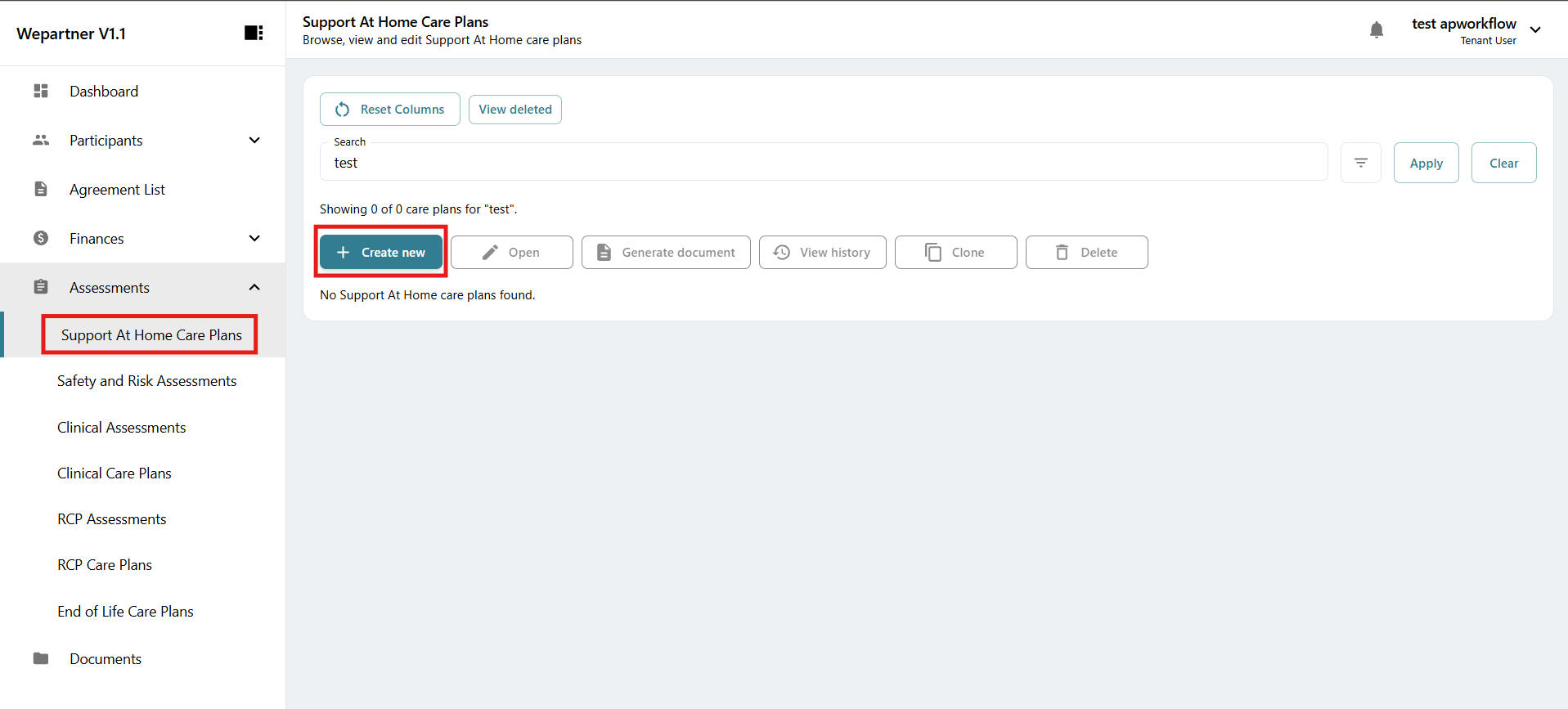
1To create a new care plan, select Assessment in the left sidebar, then select the appropriate care plan type.要创建新护理计划,请在左侧菜单中选择 Assessment(评估),然后选择所需的护理计划类型。
2Select Create new to start a new care plan.选择 Create new(新建)以开始创建护理计划。
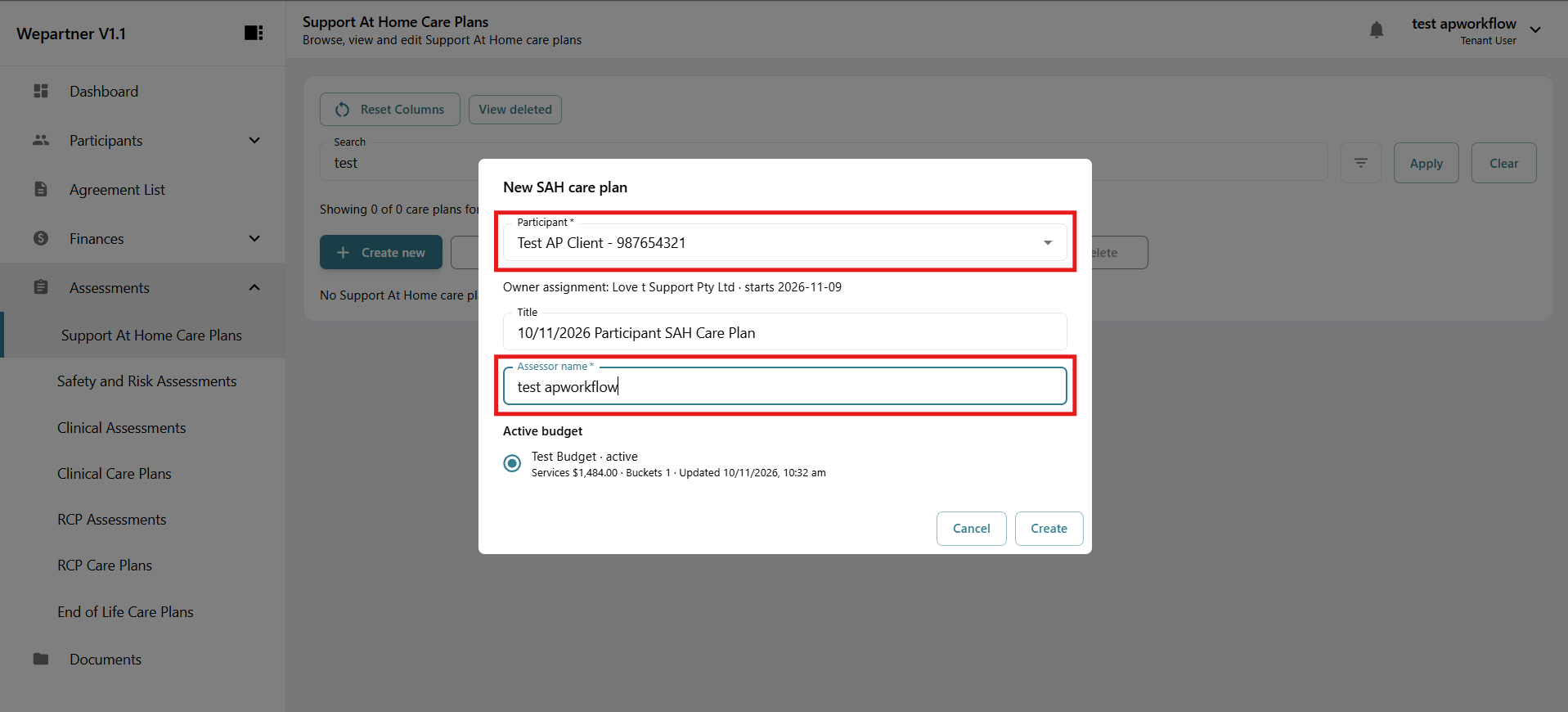
3Choose the participant you want to create a care plan for and include the assessor’s name.选择需要创建护理计划的参与者,并填写评估人员的姓名。
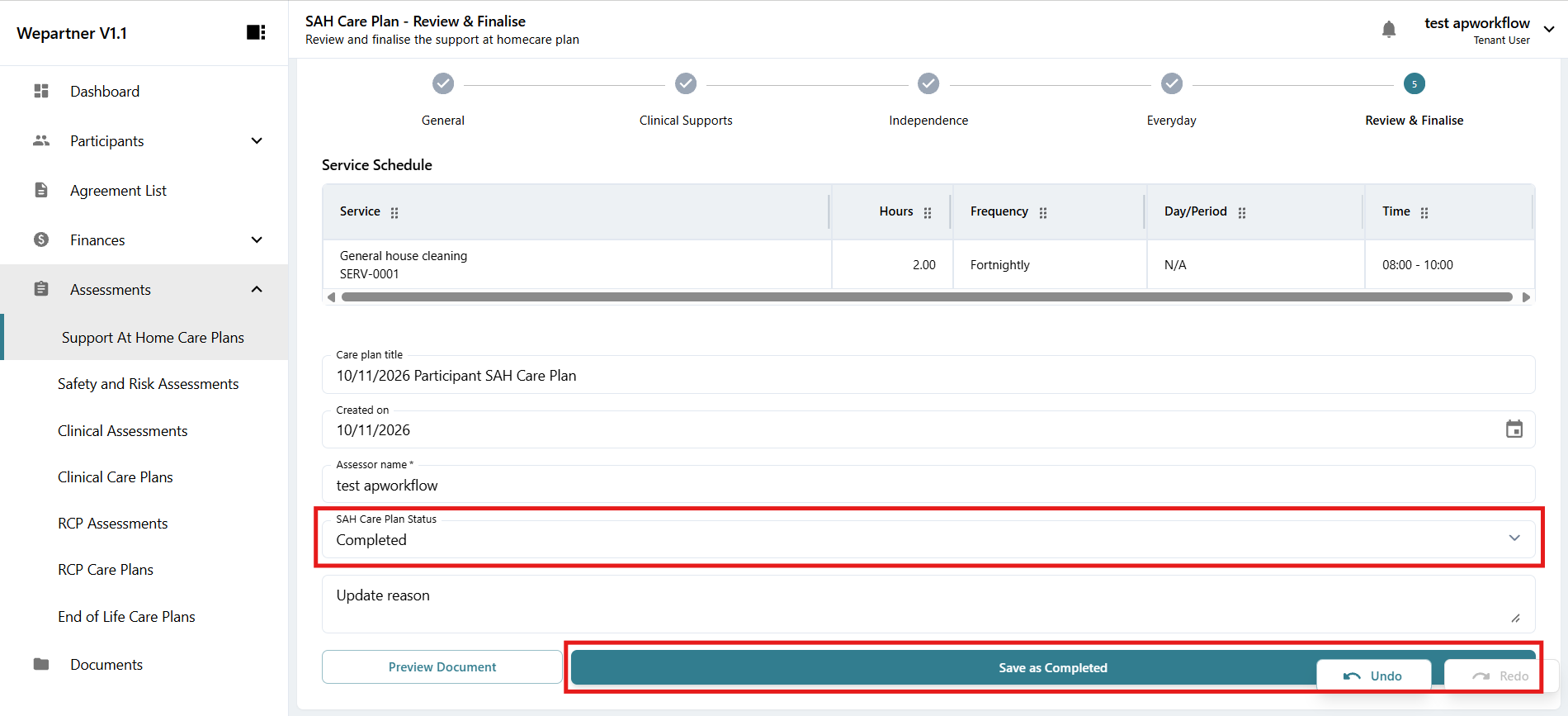
4Fill in the care plan details. When finished, select Save as Completed to finalise the care plan. If you exit partway through, the system will ask whether you want to save your progress as a draft so you can return to it later.填写护理计划详情。完成后,选择 Save as Completed(保存为已完成)以完成计划。如果中途退出,系统会询问是否将当前进度保存为草稿,以便稍后继续。
Generating a care plan document生成护理计划文档
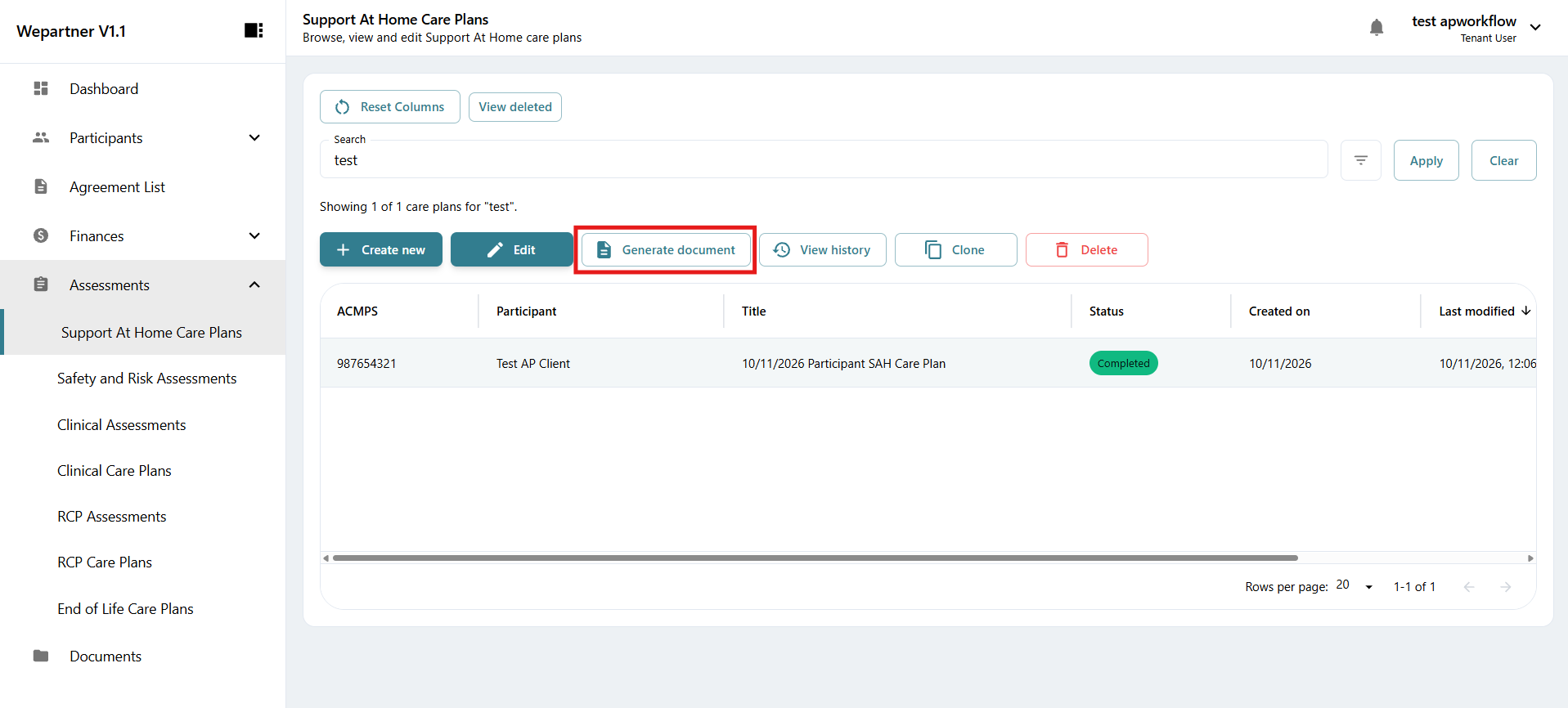
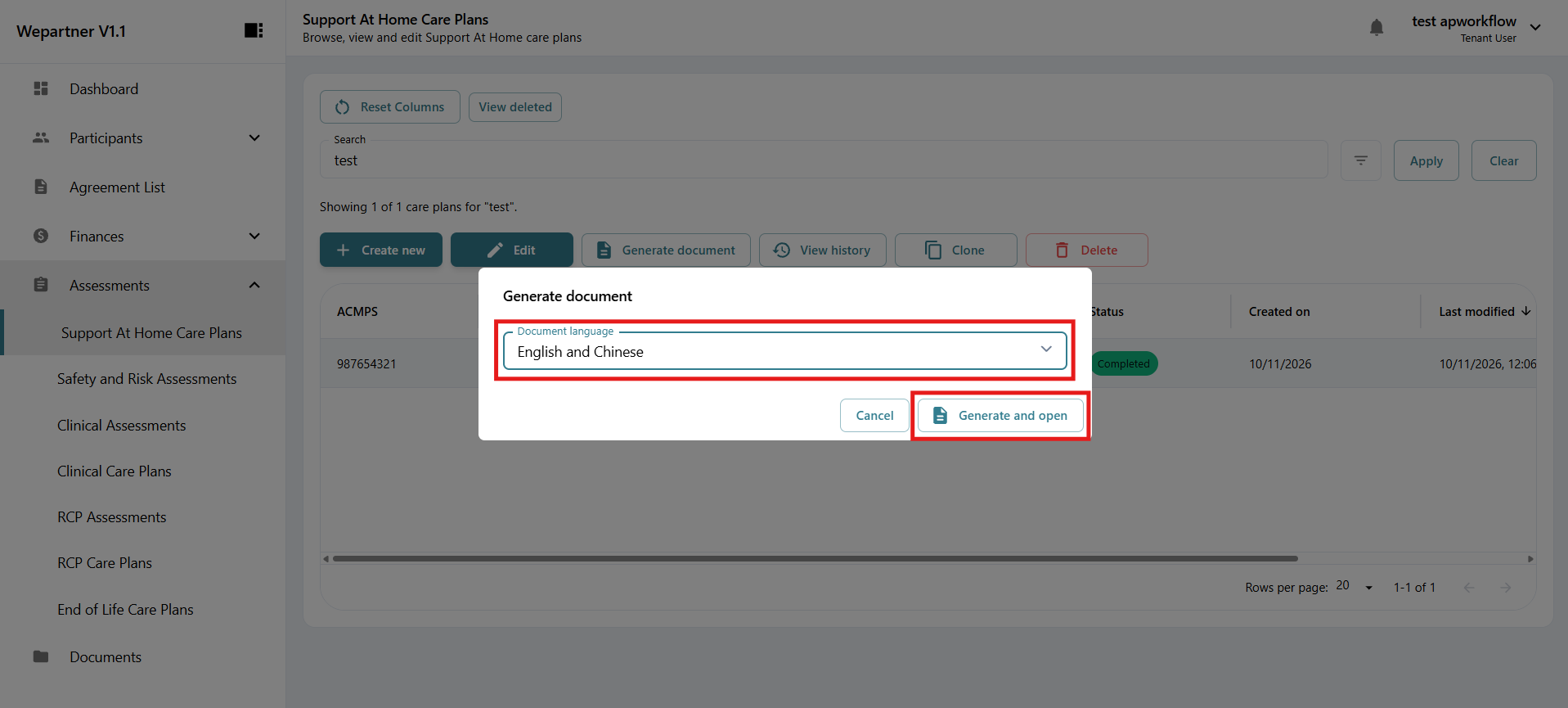
A care plan document can be generated in English only or in both English and Chinese.护理计划可生成为英文文档或中英文双语文档。
1Select the participant whose care plan you wish to export, then click Generate Document.选择需要导出护理计划的参与者,然后点击 Generate Document(生成文档)。
2Choose the document language, then click Generate and Open.选择文档语言,然后点击 Generate and Open(生成并打开)。
Editing a care plan编辑护理计划
1To edit a care plan, first select the participant in the care plan list.要编辑护理计划,请先在护理计划列表中选择参与者。
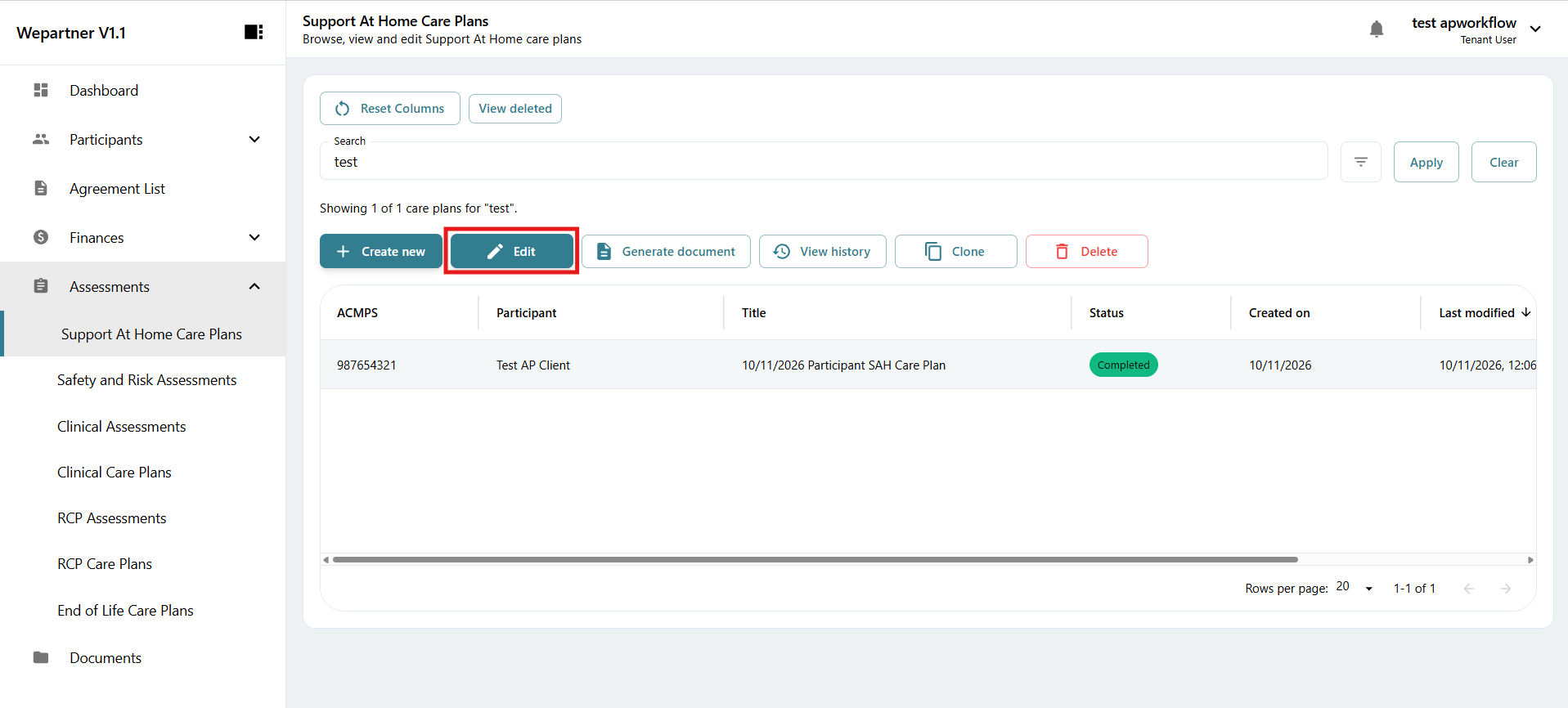
2Select Edit or double-click the participant to open their care plan and begin editing.选择 Edit(编辑)或双击参与者,打开其护理计划并开始编辑。
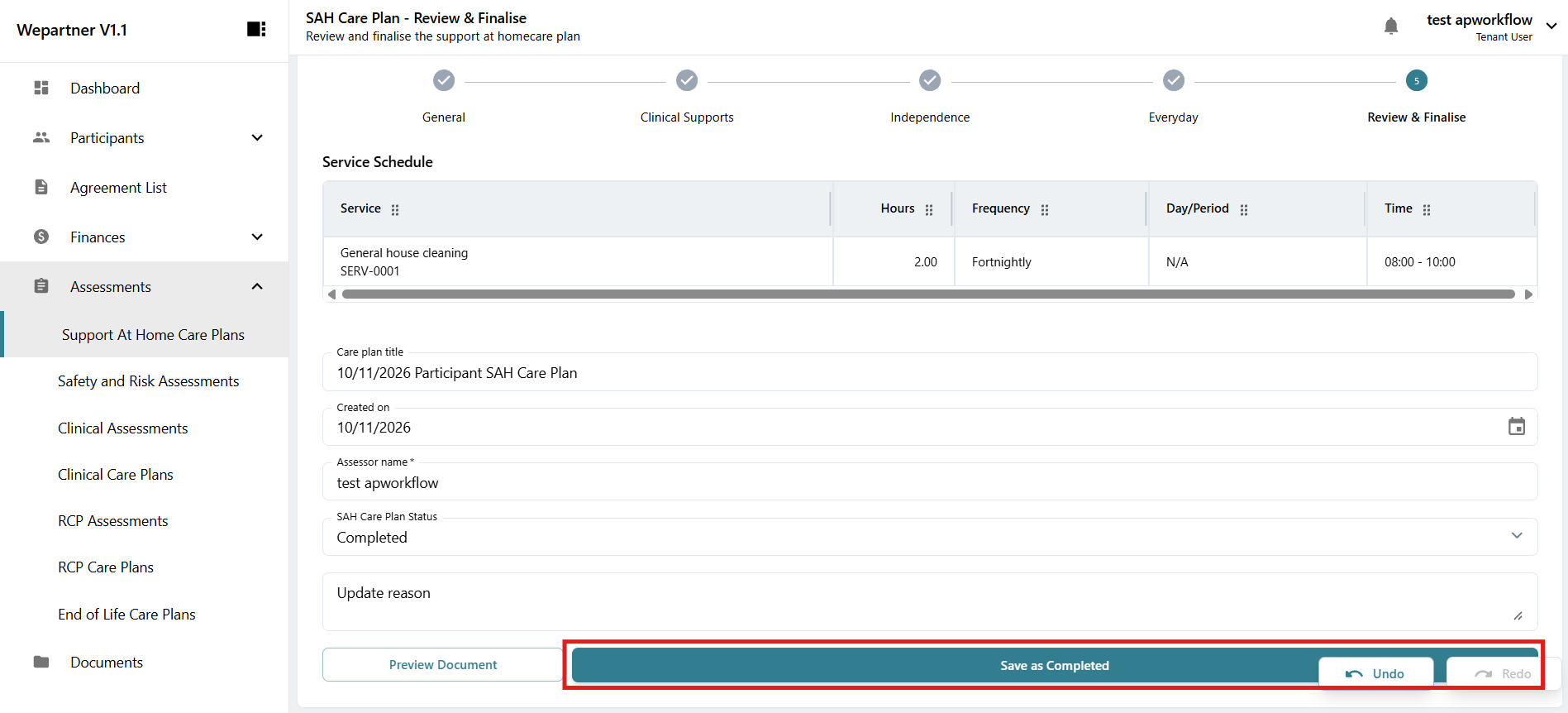
3To finish editing, navigate to step 5, Review & Finalise, and select Save as Completed.完成编辑时,请转到第 5 步 Review & Finalise(审核并完成),然后选择 Save as Completed(保存为已完成)。
03Care notes护理记录
Creating care notes创建护理记录
1To create a care note for a participant, select Participants in the left sidebar, then select Create Care Notes.要为参与者创建护理记录,请在左侧菜单中选择 Participants(参与者),然后选择 Create Care Notes(创建护理记录)。
2From the dropdown menu, select the participant for whom you want to create a care note.从下拉菜单中选择需要创建护理记录的参与者。
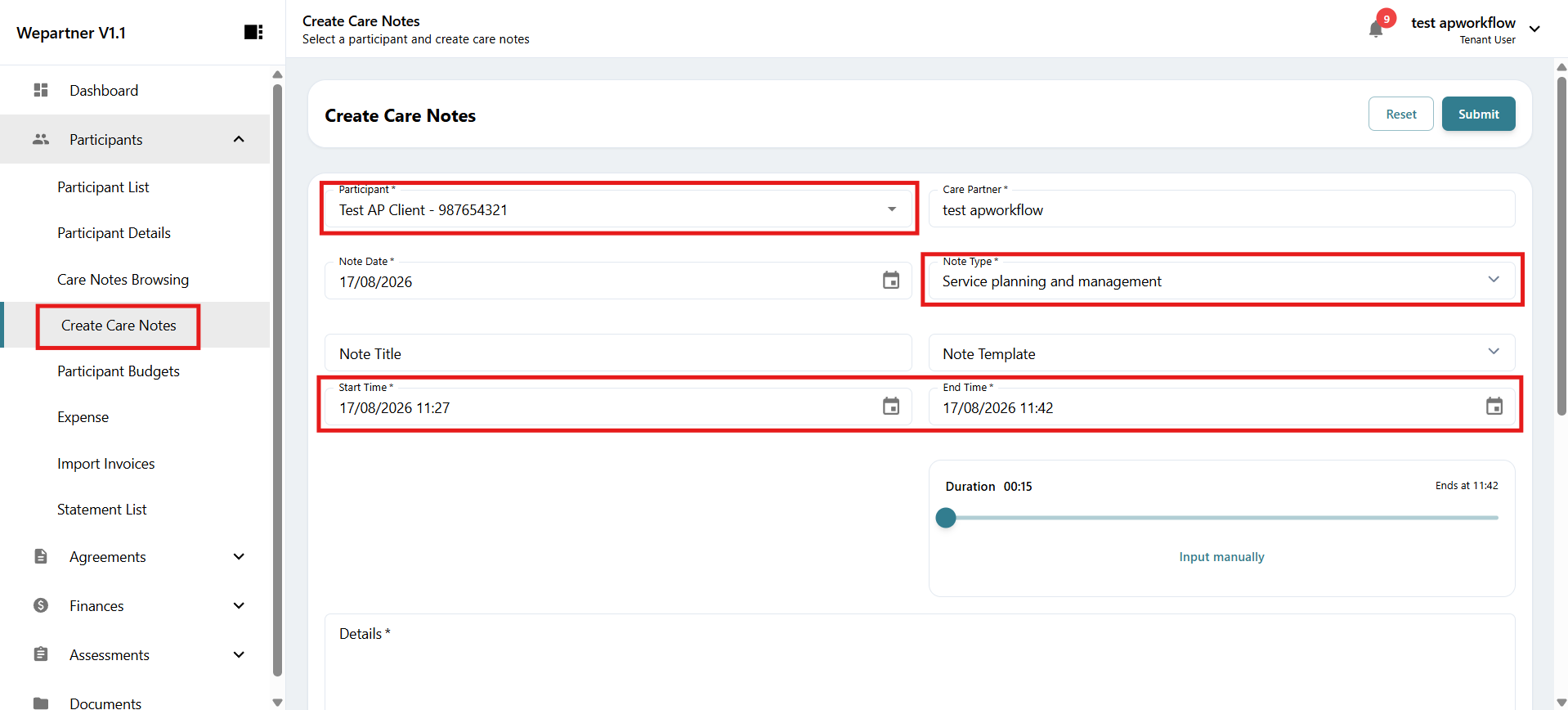
3Fill in the required information. You can select a note template to help document common care notes.填写必填信息。您可以选择记录模板,帮助填写常见护理记录。
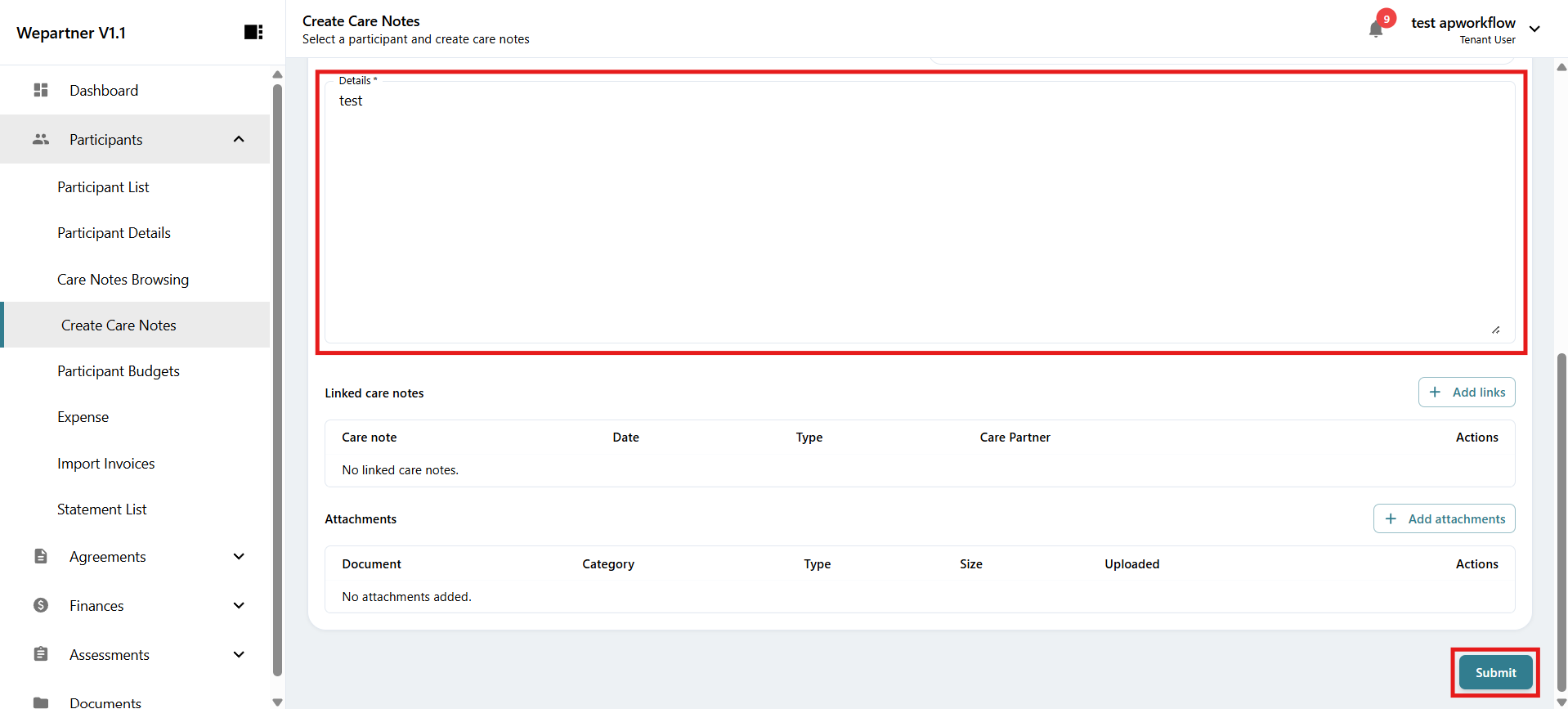
4Link other care notes for the participant under Linked Care Notes to provide more context.可在 Linked Care Notes(关联护理记录)中关联该参与者的其他护理记录,以提供更多背景信息。
Any uploaded documents belonging to the participant can also be attached to the care note.也可以将属于该参与者的已上传文档附加到护理记录中。
Browsing care notes浏览护理记录
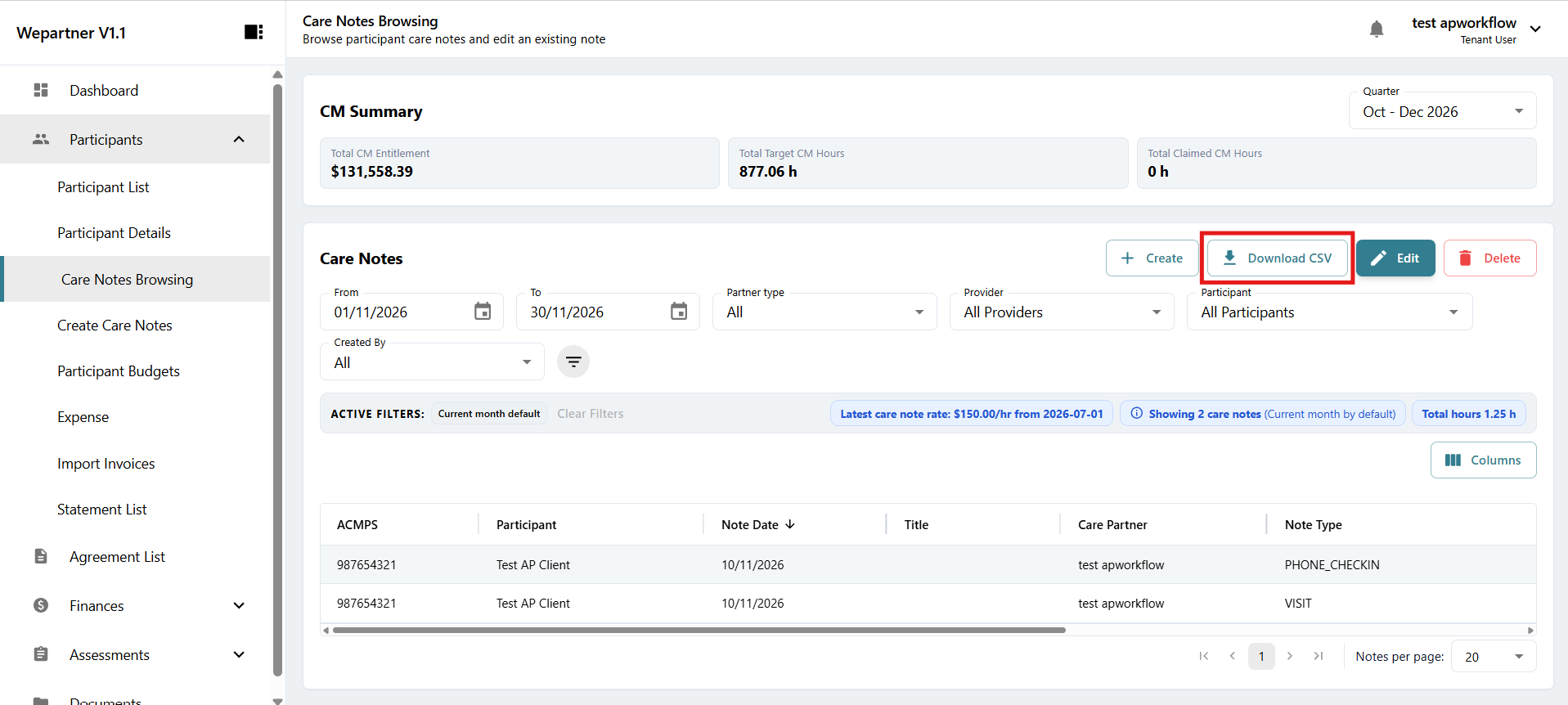
1To browse or search for previous care notes, select Participants from the left sidebar, then select Care Notes Browsing.要浏览或搜索以往的护理记录,请在左侧菜单中选择 Participants(参与者),然后选择 Care Notes Browsing(浏览护理记录)。
You can filter the care notes shown. By default, the list displays all care notes created in the current month.可使用筛选条件查看护理记录。默认筛选条件显示当月创建的所有护理记录。
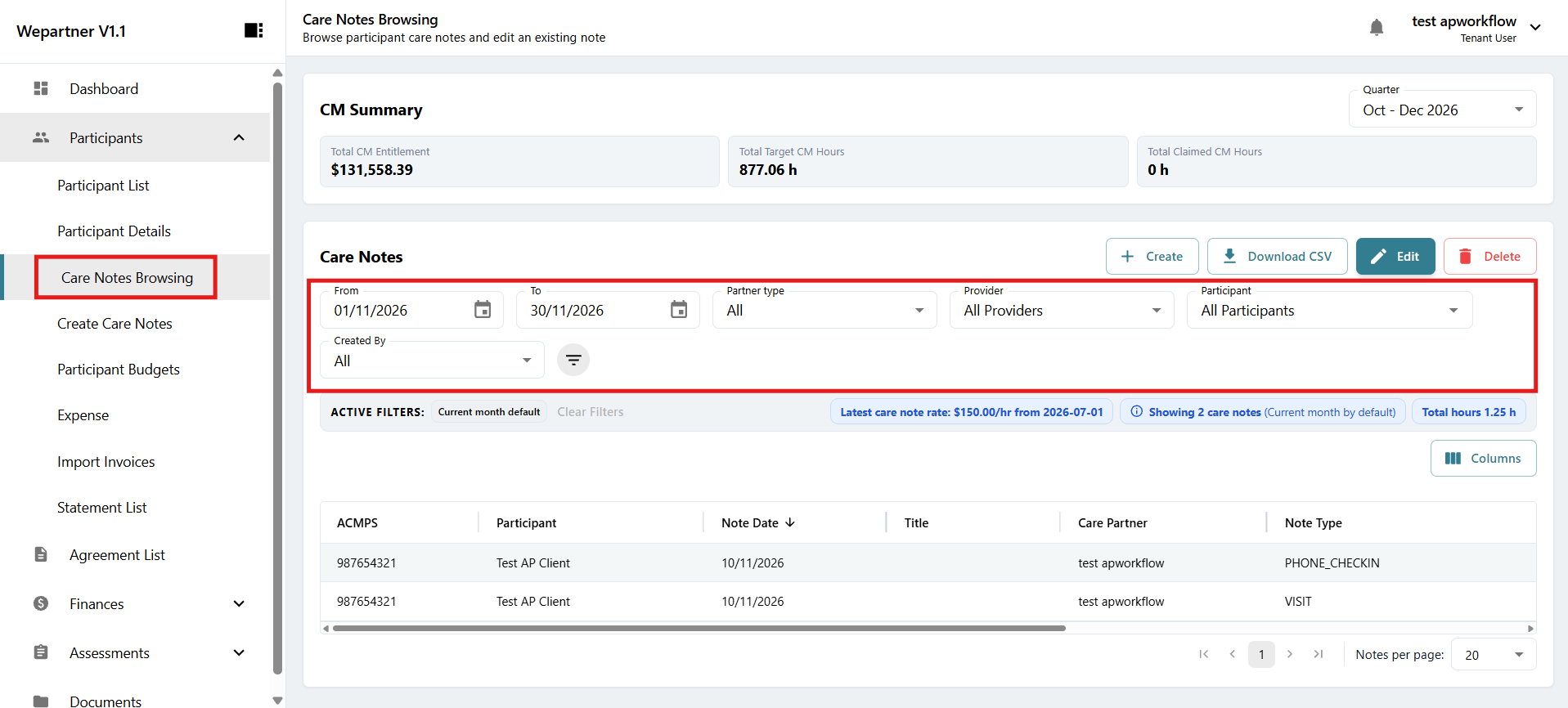
2Use filters such as dates to narrow your search, or search by participant name.使用日期等筛选条件缩小搜索范围,或按参与者姓名搜索。
3To view a care note, select it and click Edit to open its details.要查看护理记录,请选中该记录并点击 Edit(编辑)以打开详情。
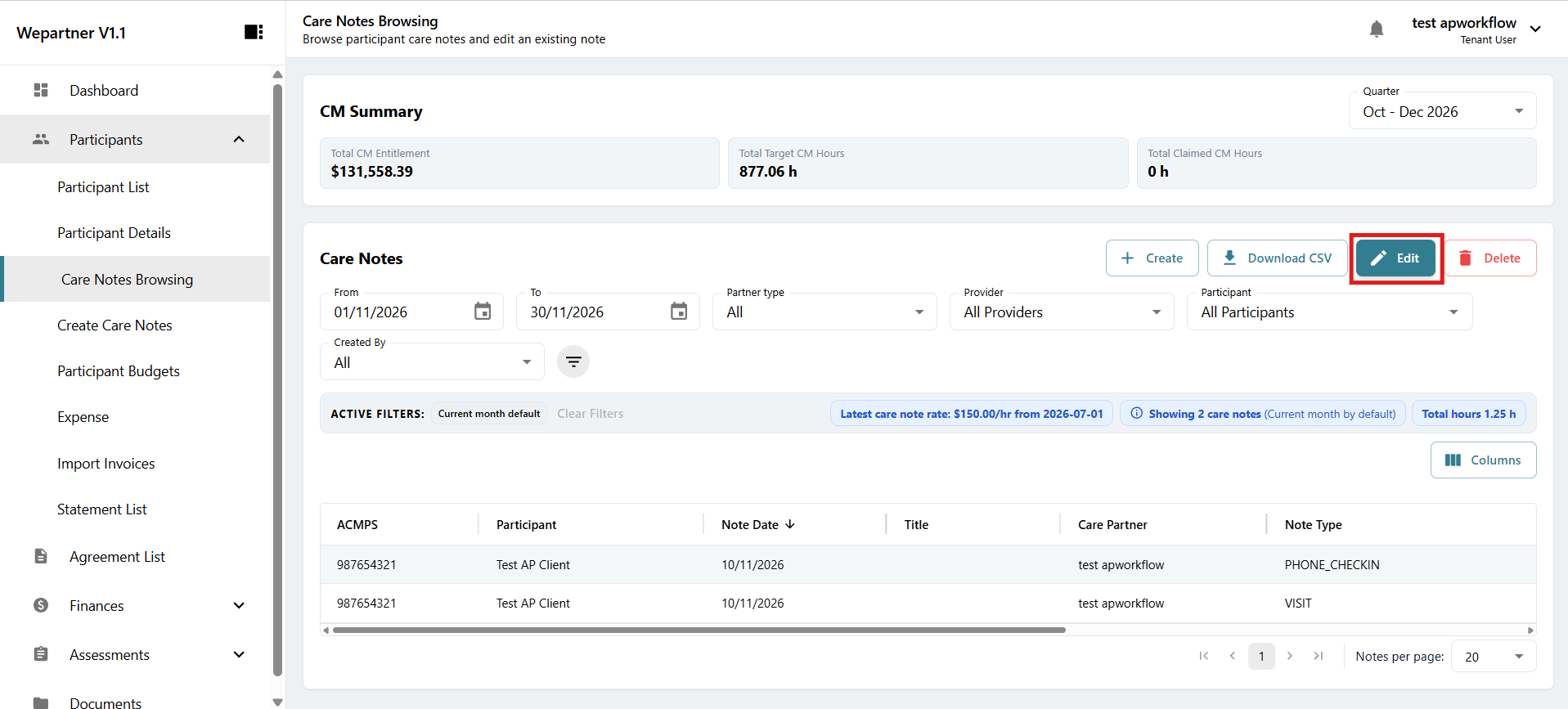
You can also download a care note by selecting it and clicking Download CSV.也可选择所需护理记录,然后点击 Download CSV(下载 CSV)进行下载。
04Expense submission提交费用
Submitting an expense提交费用
Expenses can only be submitted with a valid agreement.只有在协议有效的情况下才能提交费用。
1To submit an expense for a participant, select Participants in the left sidebar, then select Expense.要为参与者提交费用,请在左侧菜单中选择 Participants(参与者),然后选择 Expense(费用)。
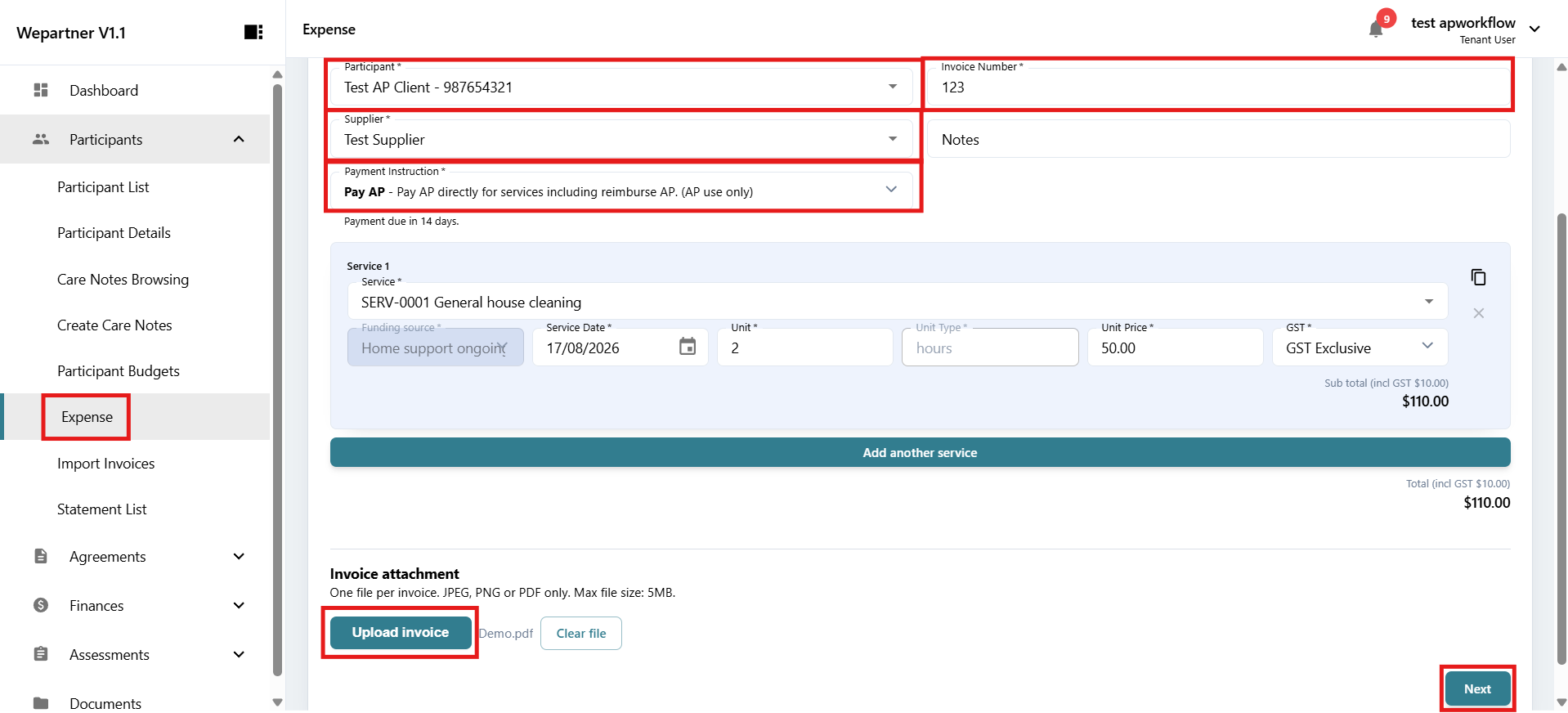
2Fill in the required information and upload an invoice. You can submit multiple service expenses by clicking Add Another Service. Provide evidence for each expense when uploading the invoice.填写必填信息并上传发票。点击 Add Another Service(添加另一项服务)可提交多项服务费用。上传发票时,请为每项费用提供证明材料。
3Select Next to review the details.选择 Next(下一步)以查看详情。
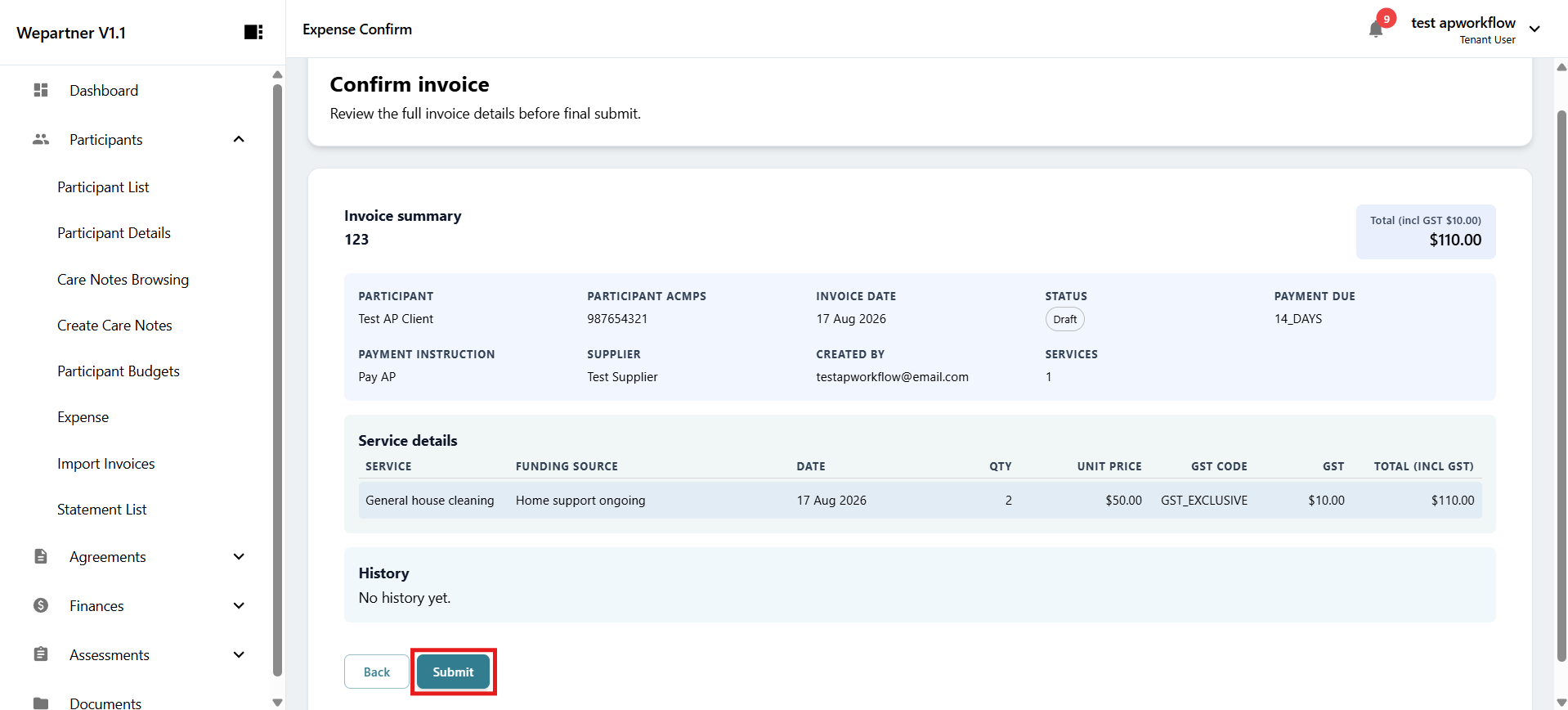
4Review your expense details and select Submit to confirm the submission.检查费用详情,然后选择 Submit(提交)以确认提交。
Bulk uploading expenses批量上传费用
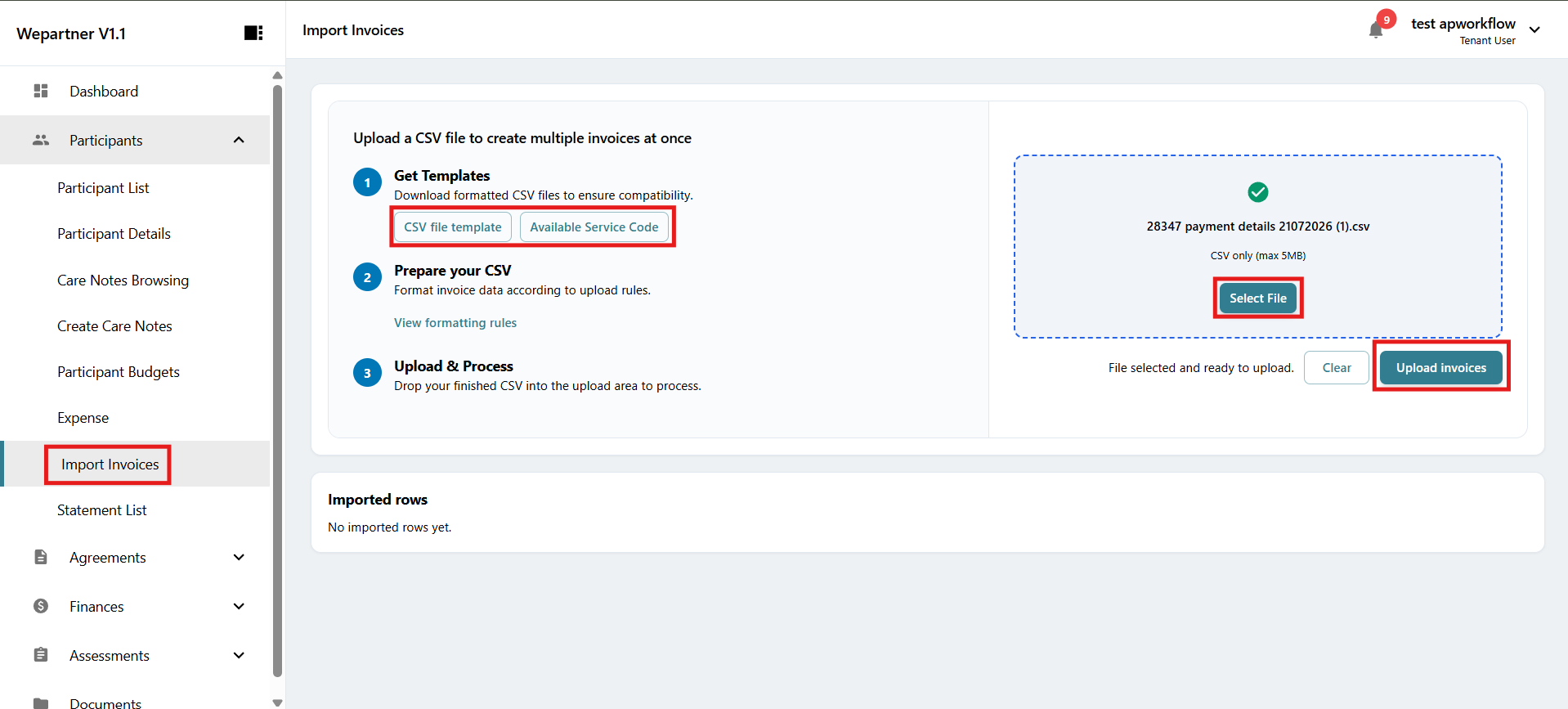
1To upload expenses in bulk using a CSV file, select Participants, then select Import External Invoice.要使用 CSV 文件批量上传费用,请选择 Participants(参与者),然后选择 Import External Invoice(导入外部发票)。
2Download the CSV template and service code for reference.下载 CSV 模板和服务代码以供参考。
3Follow the formatting rules to ensure compatibility.请遵循格式要求,确保文件兼容。
4Upload your CSV file in the area on the right, then select Upload Invoice. The expense is saved as a draft.在右侧区域上传 CSV 文件,然后选择 Upload Invoice(上传发票)。费用将保存为草稿。
5To finalise the submission, select Edit Draft Invoice for the invoice you wish to submit.要完成提交,请为需要提交的发票选择 Edit Draft Invoice(编辑发票草稿)。
6Check that all information is correct, then select Submit to submit the expense.确认所有信息无误后,选择 Submit(提交)以提交费用。
Editing an expense编辑费用
1To edit an expense, select Finances from the left sidebar, then select Invoice Management.要编辑费用,请在左侧菜单中选择 Finances(财务),然后选择 Invoice Management(发票管理)。
2Select the expense you want to edit, then click the pencil icon.选择需要编辑的费用,然后点击铅笔图标。
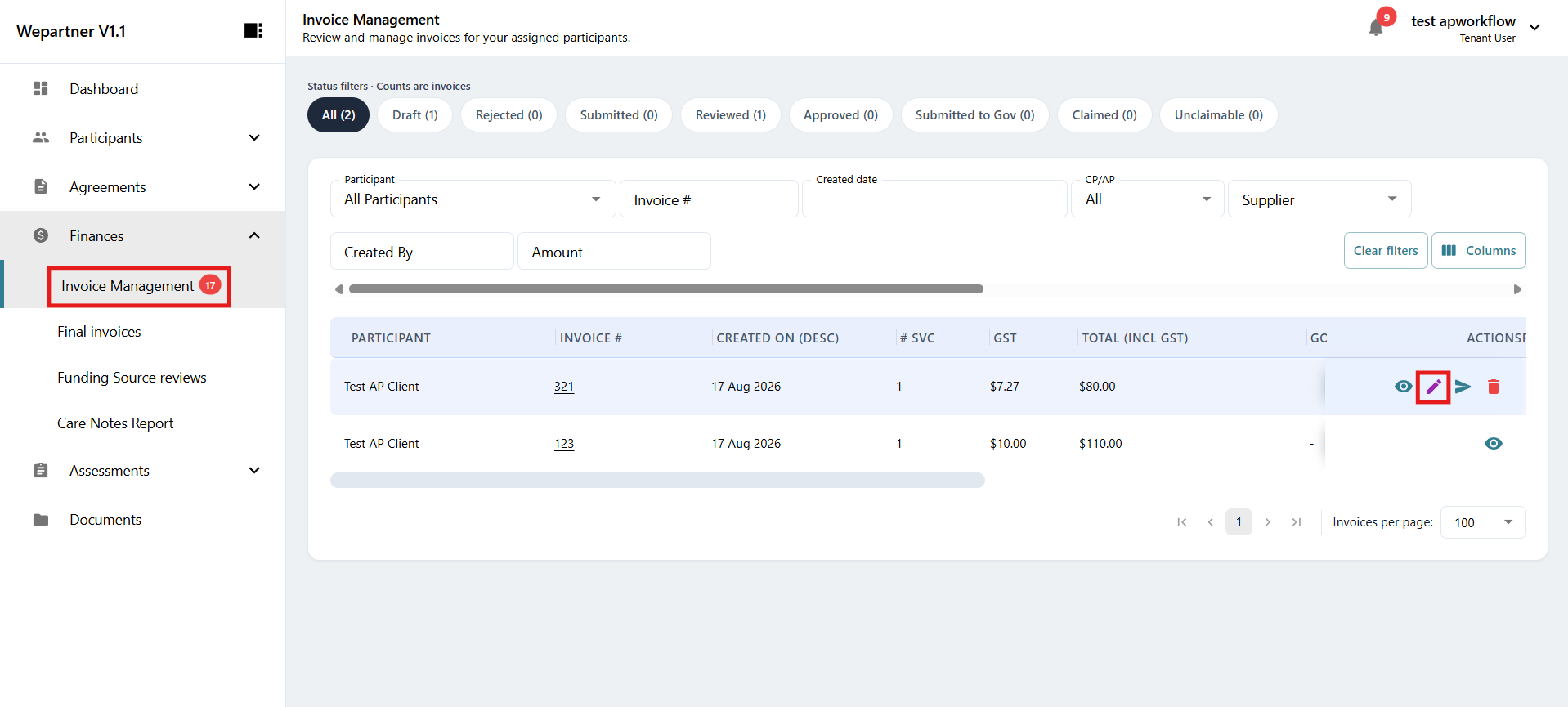
3When you have finished editing, select Save to save your changes.完成编辑后,选择 Save(保存)以保存更改。
4To submit the edited expense, click the arrow icon. Once submitted, the expense can no longer be edited.要提交编辑后的费用,请点击箭头图标。费用提交后将无法再编辑。
Final invoices最终发票
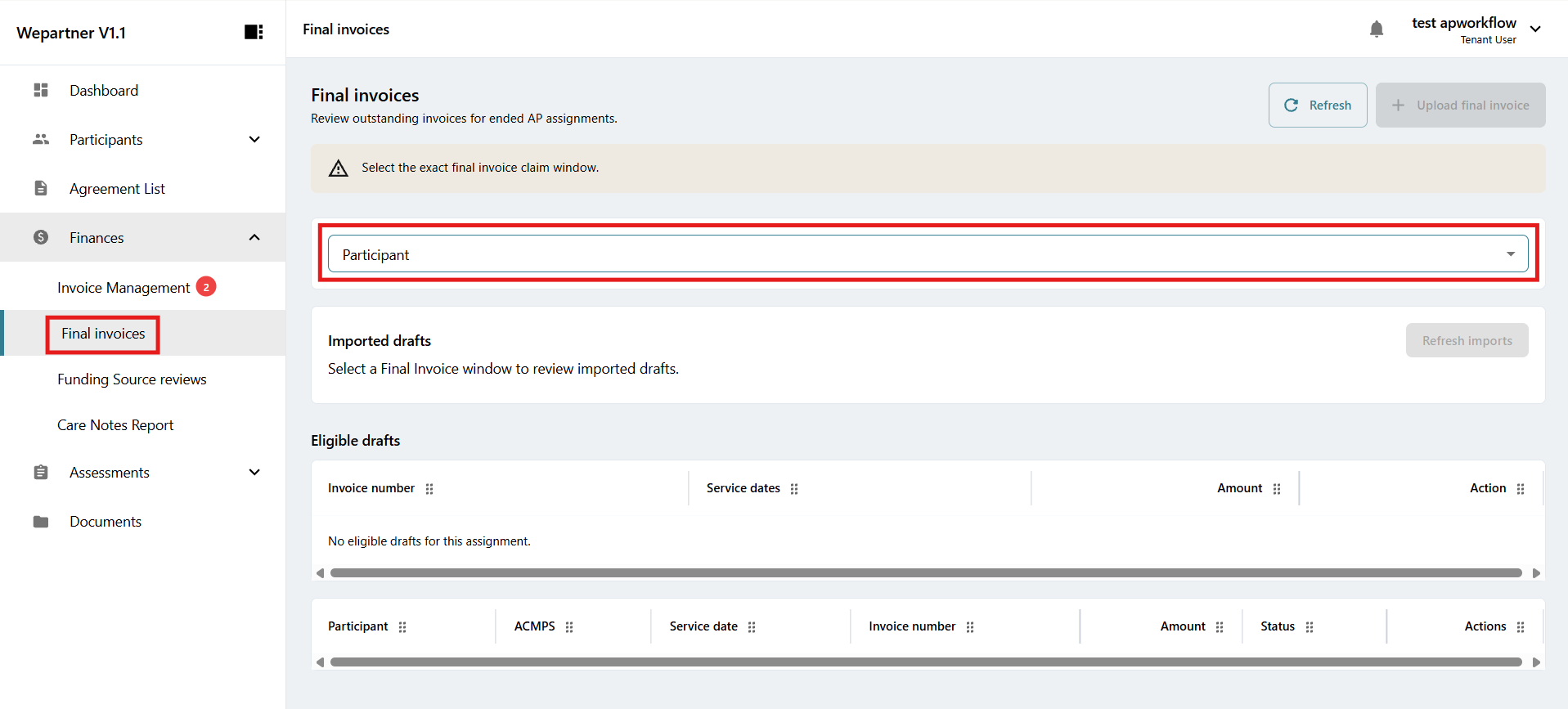
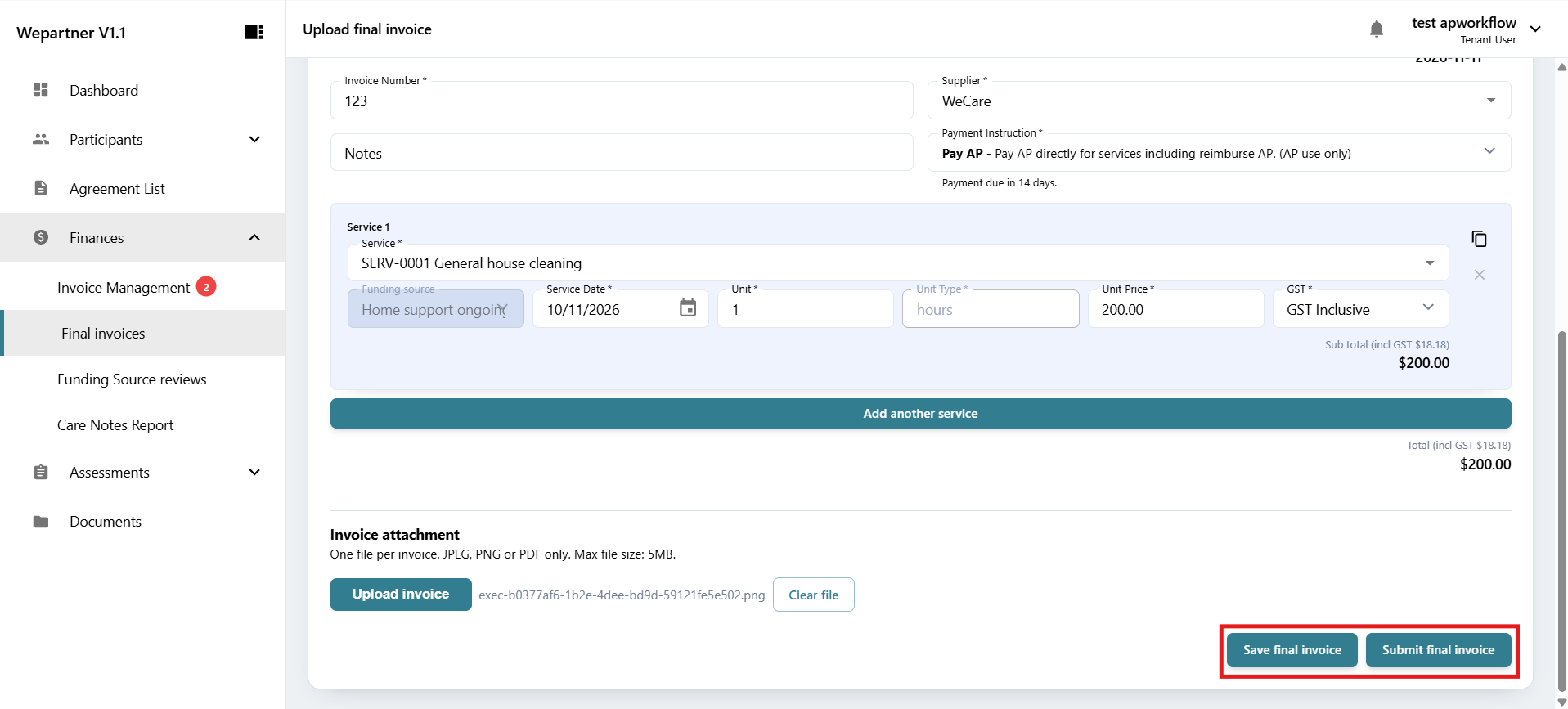
1To submit a final invoice for a participant, select Finances in the left sidebar, then select Final invoices.要为参与者提交最终发票,请在左侧菜单中选择 Finances(财务),然后选择 Final invoices(最终发票)。
2Choose the participant from the Participant dropdown menu.从 Participant(参与者)下拉菜单中选择参与者。
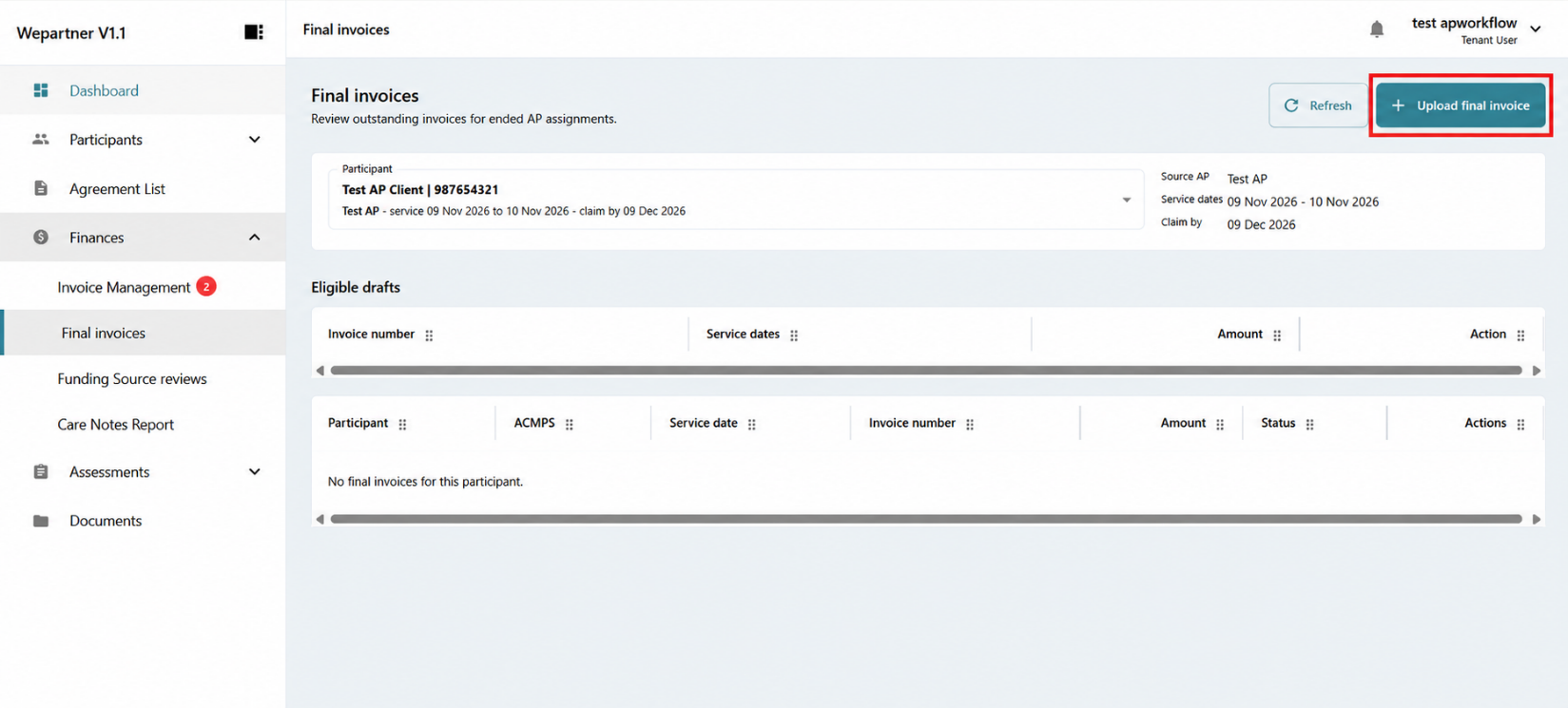
3Select Upload final invoice.选择 Upload final invoice(上传最终发票)。
4Fill in the required details, including the invoice number, supplier, payment instruction and services, and upload the invoice.填写必填详情,包括发票号码、供应商、付款指示和服务,并上传发票。
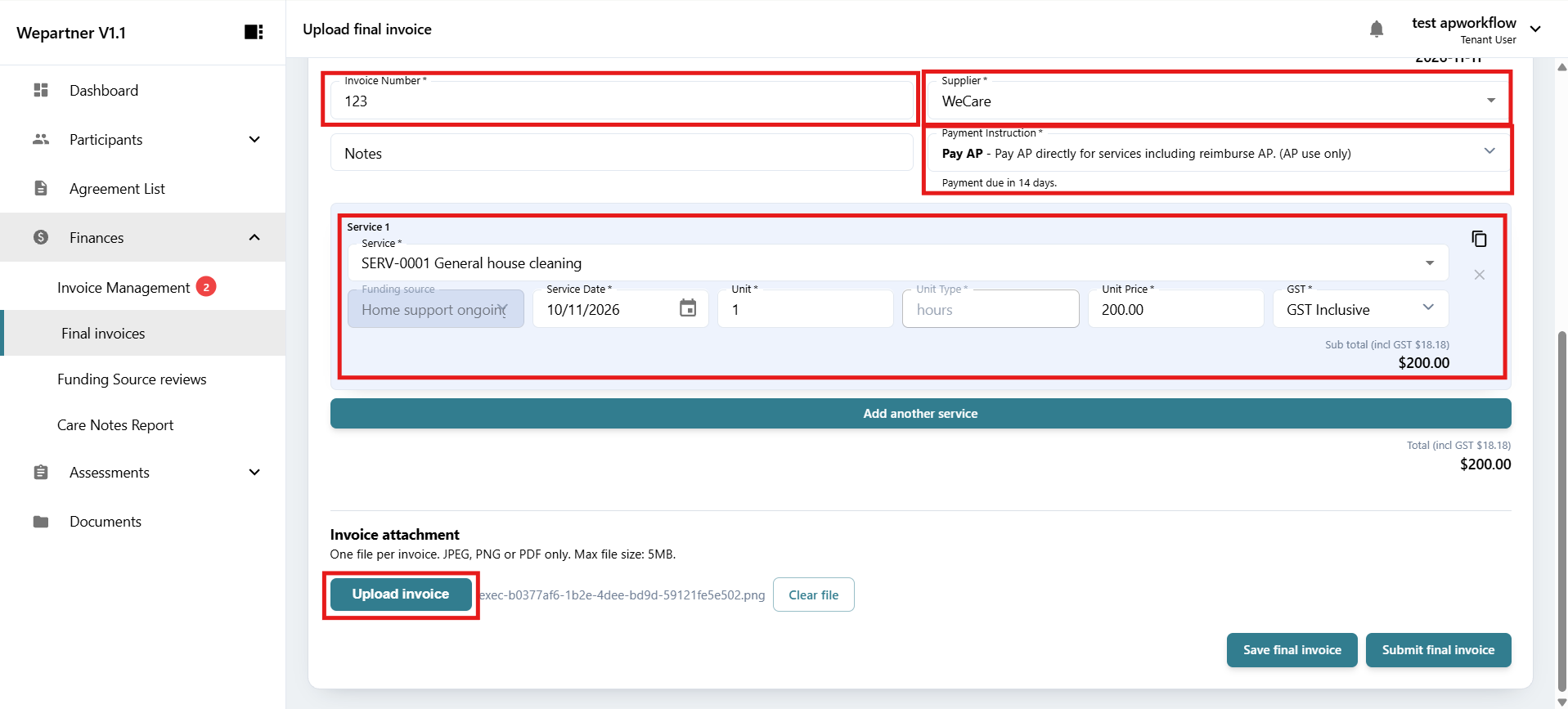
5Select Save final invoice to save a draft, or Submit final invoice to submit it.选择 Save final invoice(保存最终发票)以保存草稿,或选择 Submit final invoice(提交最终发票)以提交。
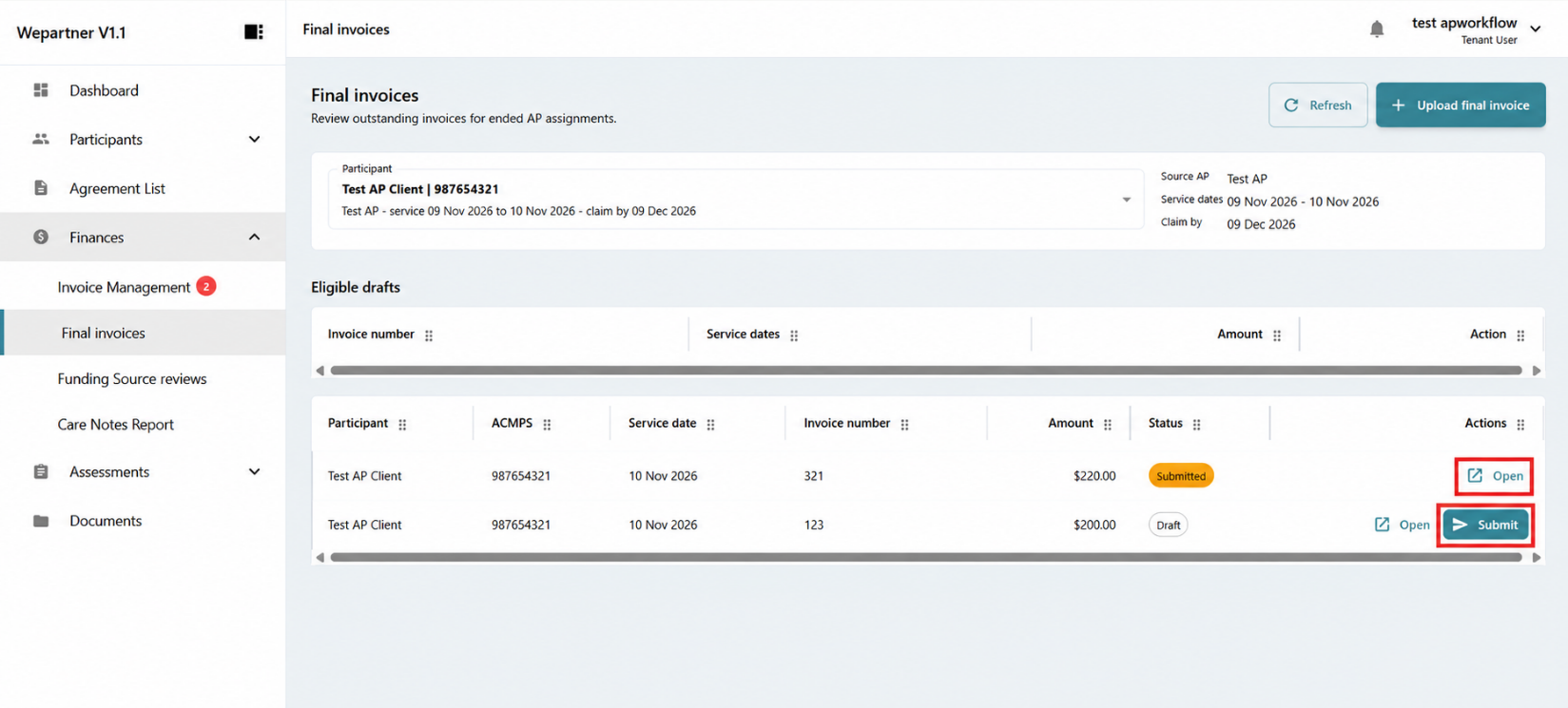
Saved and submitted final invoices appear under the selected participant. Select Open to view an invoice, or Submit to submit a draft.已保存或提交的最终发票会显示在所选参与者下方。选择 Open(打开)可查看发票;选择 Submit(提交)可提交草稿。
05Downloading participant statements下载参与者对账单
1To download participant statements, select Participants in the left sidebar, then select Statement List.要下载参与者对账单,请在左侧菜单中选择 Participants(参与者),然后选择 Statement List(对账单列表)。
2Select the statement you want to download, then click Download.选择需要下载的对账单,然后点击 Download(下载)。
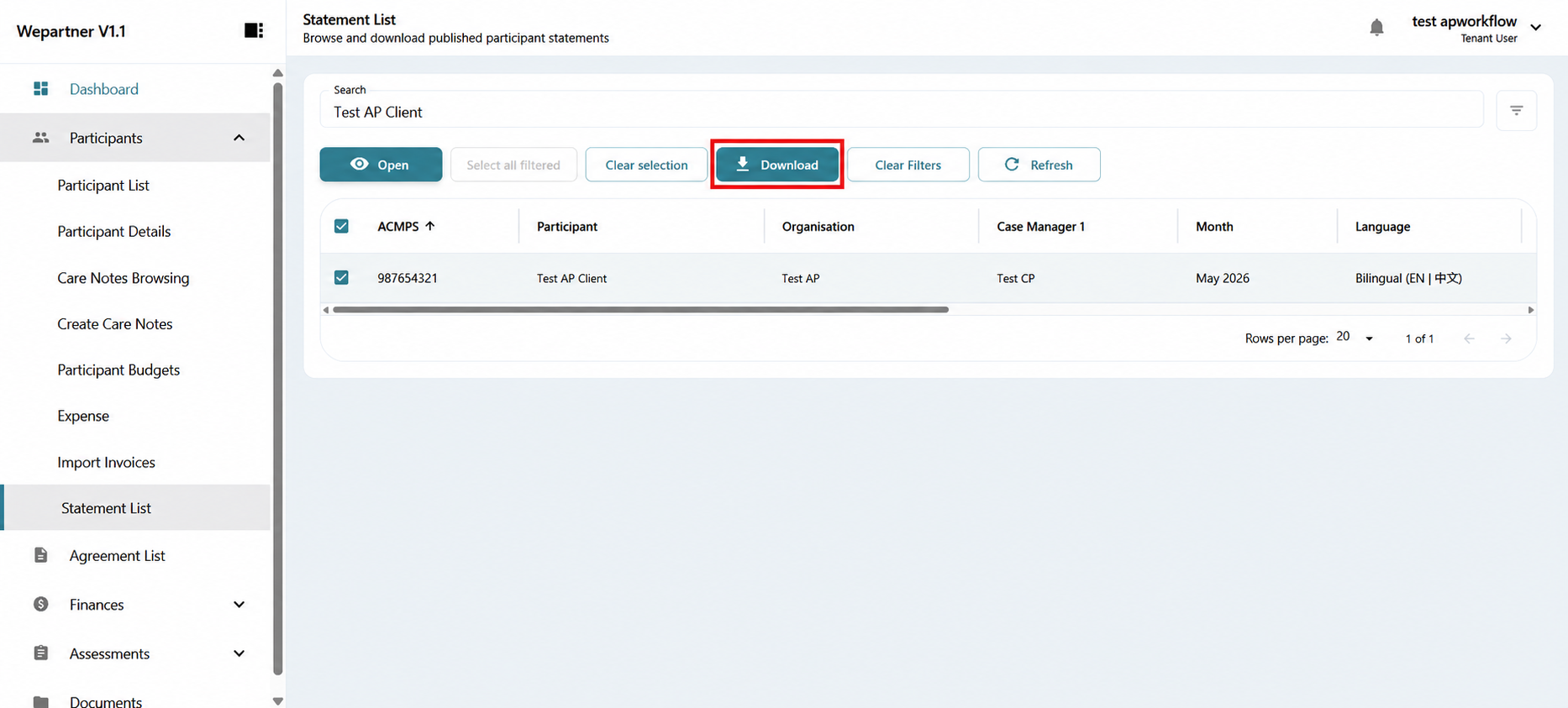
3Choose your preferred download format: ZIP or CSV.选择下载格式:ZIP 或 CSV。
